 Skip to main content

Get the Most Out of Your Relationships
What pages are linking to your page or file? Check its relationships.
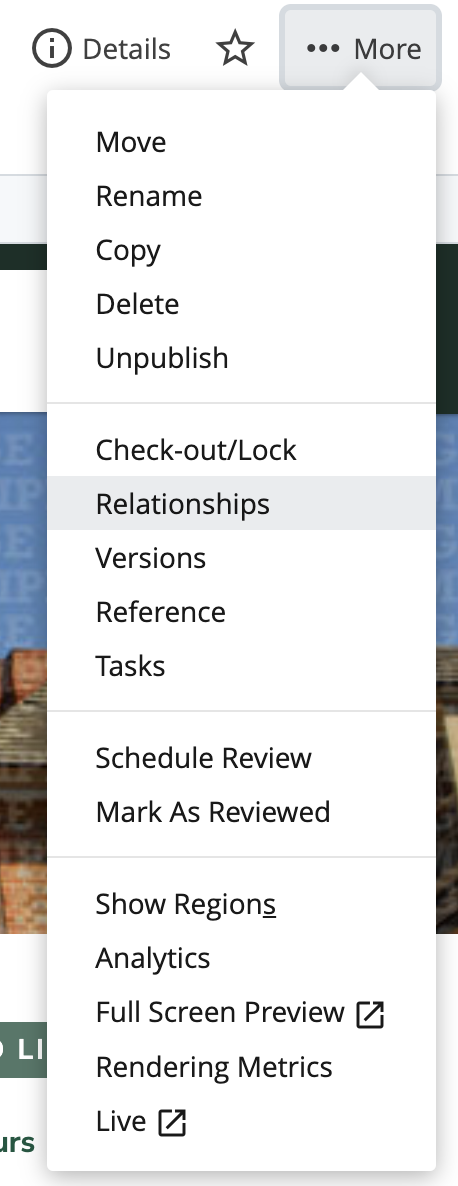 For assets such as images, documents, widgets, listboxes and most page types, you can view its relationships — the assets that manually link to it from within the same domain. For example, law.wm.edu editors will be able to see relationships to other law.wm.edu assets, but not education.wm.edu assets.
Navigate to the asset then select the More menu and choose Relationships from the dropdown menu. If any relationships exist, you will be presented with a list of the pages or assets.
Once you start using this feature, you'll find more and more ways to work it into your editing routine. Most importantly, you should always check for relationships before deleting an asset to avoid broken links, removing an image from a page, etc. Here are some other possibilities:
- Ever wonder where you used a particular widget? Select the Widget file and view its relationships.
- Need to know where an image is being used? Check its relationships.
- Not sure if anyone is still linking to that old PDF? Check its relationships.
- Do you use borrowed pages? Check the relationships of the original asset to locate each borrowed version.
Read the full details about Cascade Relationships.