Skip to main content

Accessibility Module
Acquia Web Governance (formerly known as Optimize) accounts are currently only available to Cascade Managers and designated points of contact in the Cascade Content Cleanup project.
There are a variety of views and report options available within the Acquia Web Governance accessibility module to help you review and remediate potential accessibility errors. We recommend the Checklist view which offers a helpful overview and prioritizes issues that you must fix, warnings that are likely to be issues, and potential issues that require manual review to ensure compliance.
Digital Accessibility at W&M
William & Mary is working to enhance our digital accessibility standards and requirements to meet or exceed new federal and state regulations. Significant Cascade updates began in January 2025 to help improve the accessibility of your content to meet the compliance deadline of April 2026. Learn more about web accessibility in Cascade.
William & Mary’s digital accessibility team ensures campus-wide compliance with required standards, offering tools, training and support to make digital content accessible for all users, including students with disabilities. Learn more and find digital accessibility resources.
Access the Checklist
- Log in to Acquia Web Governance.
- Select your domain or group name to access the Dashboard.
- Select Accessibility. This brings you to the Summary screen.
- Select Checklist. This view organizes the flagged checks into three categories: Issues to Fix, Warnings and Issues to Review. Focus your efforts first on Issues to Fix.
- Next to each check you will find additional information.
- Select the Help center (grad cap) icon for a detailed explanation of the check.
- Select the count of affected pages to open the list of affected pages.
- Select Inspect page with browser extension (mag glass icon) to view details while viewing the page in your browser — see below for further instructions.
Locate the Issues on Your Pages Using the Browser Extension
If you have the browser extension installed:
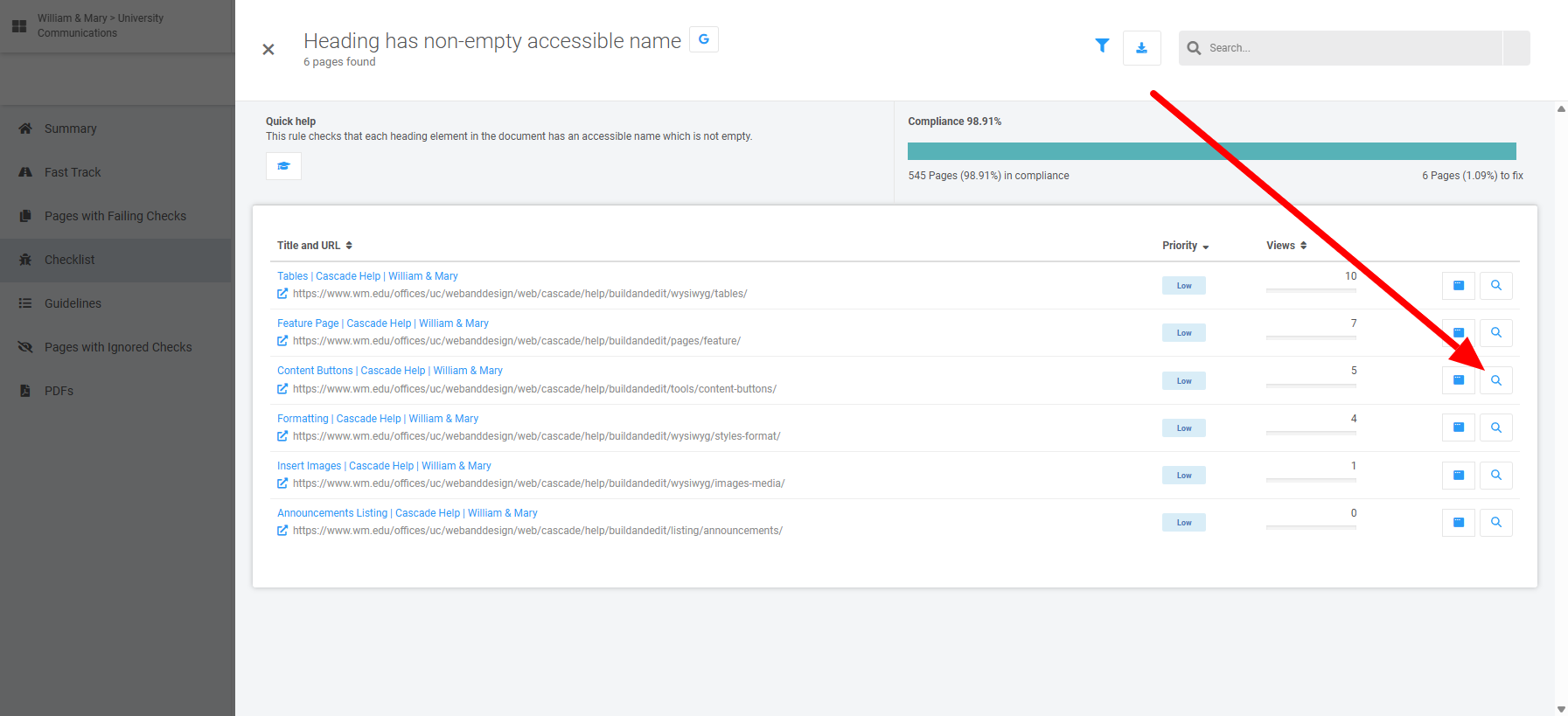
- Follow steps 1-5, above, and select the mag glass icon by each page in the list (see Screenshot 1). This will open the page in a separate tab of your browser and the Acquia Web Governance information panel will slide out from the side.
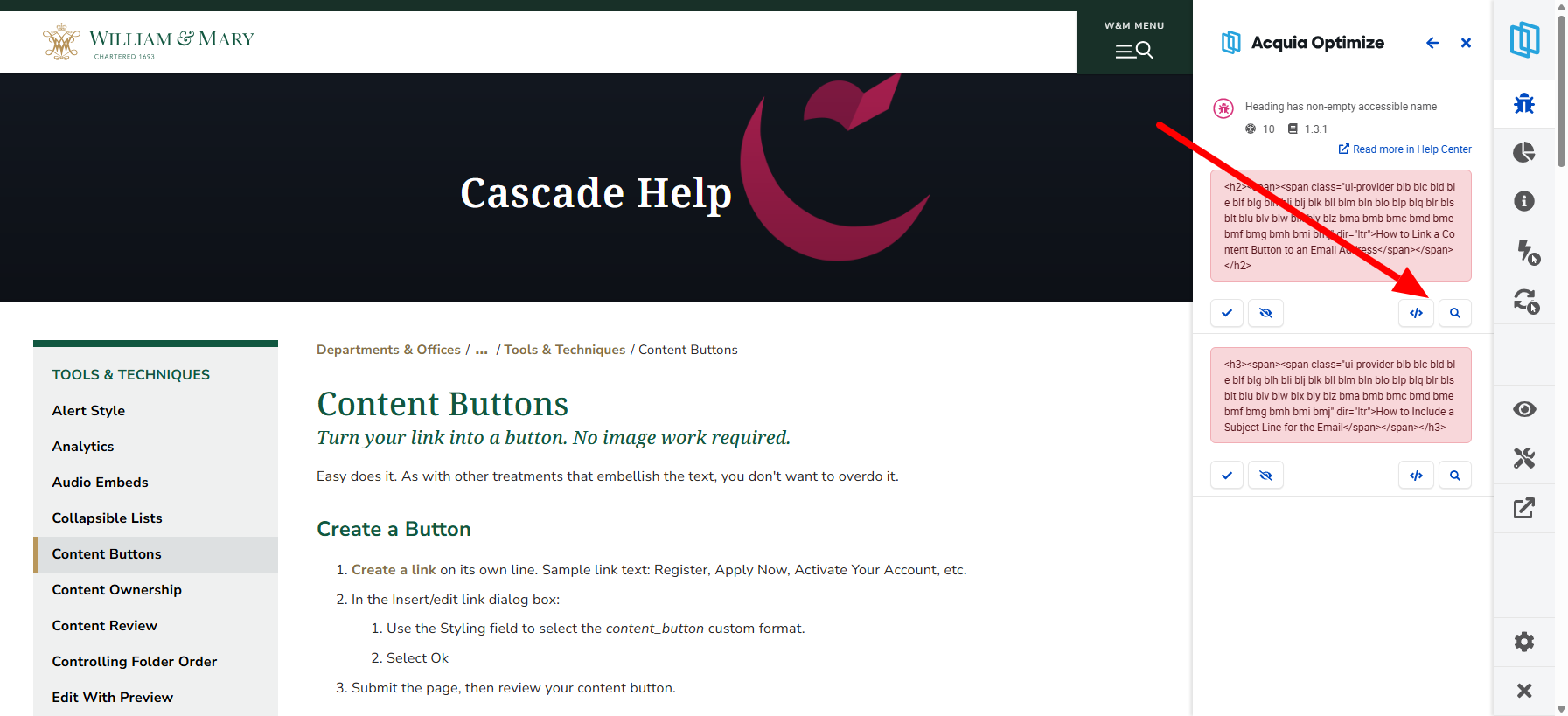
- The Information panel includes options to help locate the flagged content (see Screenshot 2).
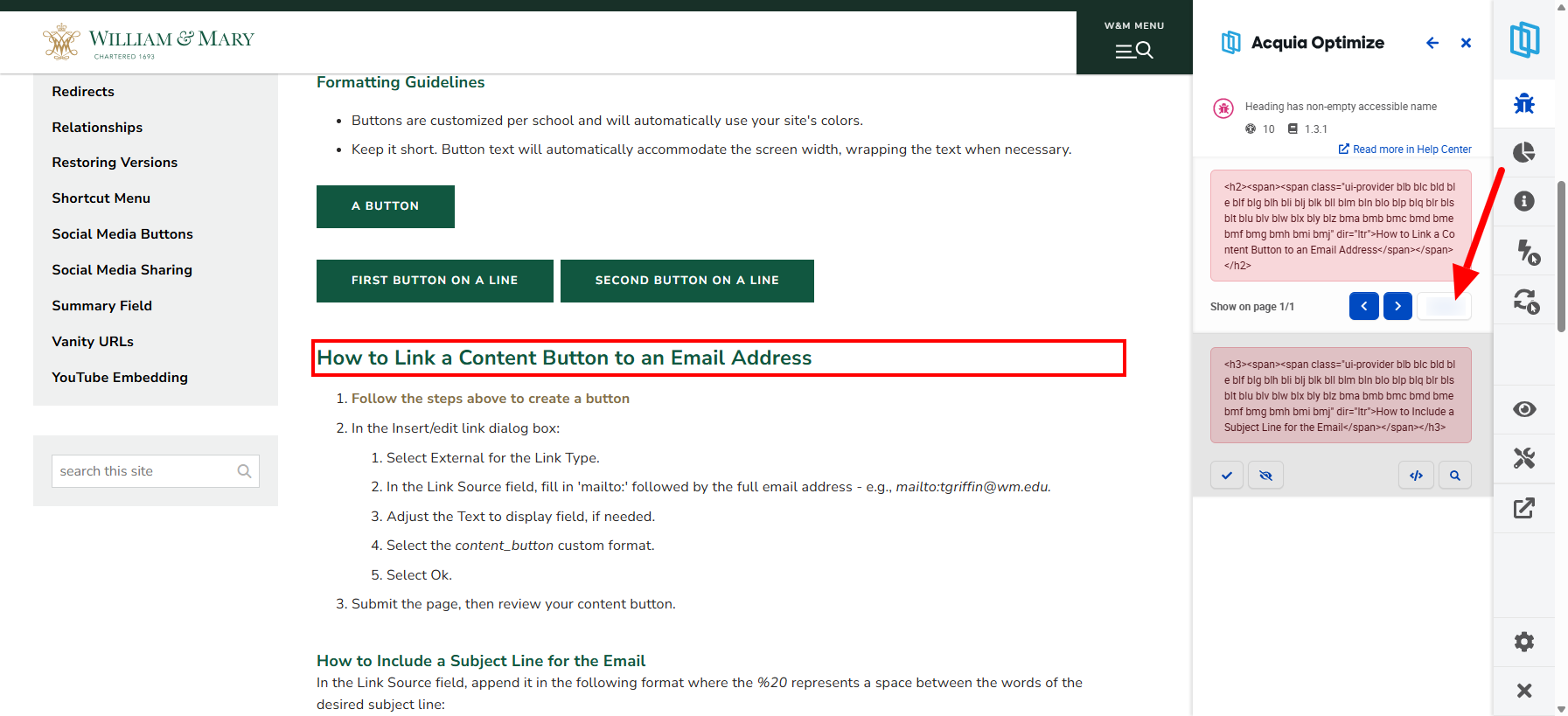
- Select the Highlight (mag glass) icon to highlight the affected content on the page (see Screenshot 3). Tip: If your page includes collapsed or hidden content, first expand all content.
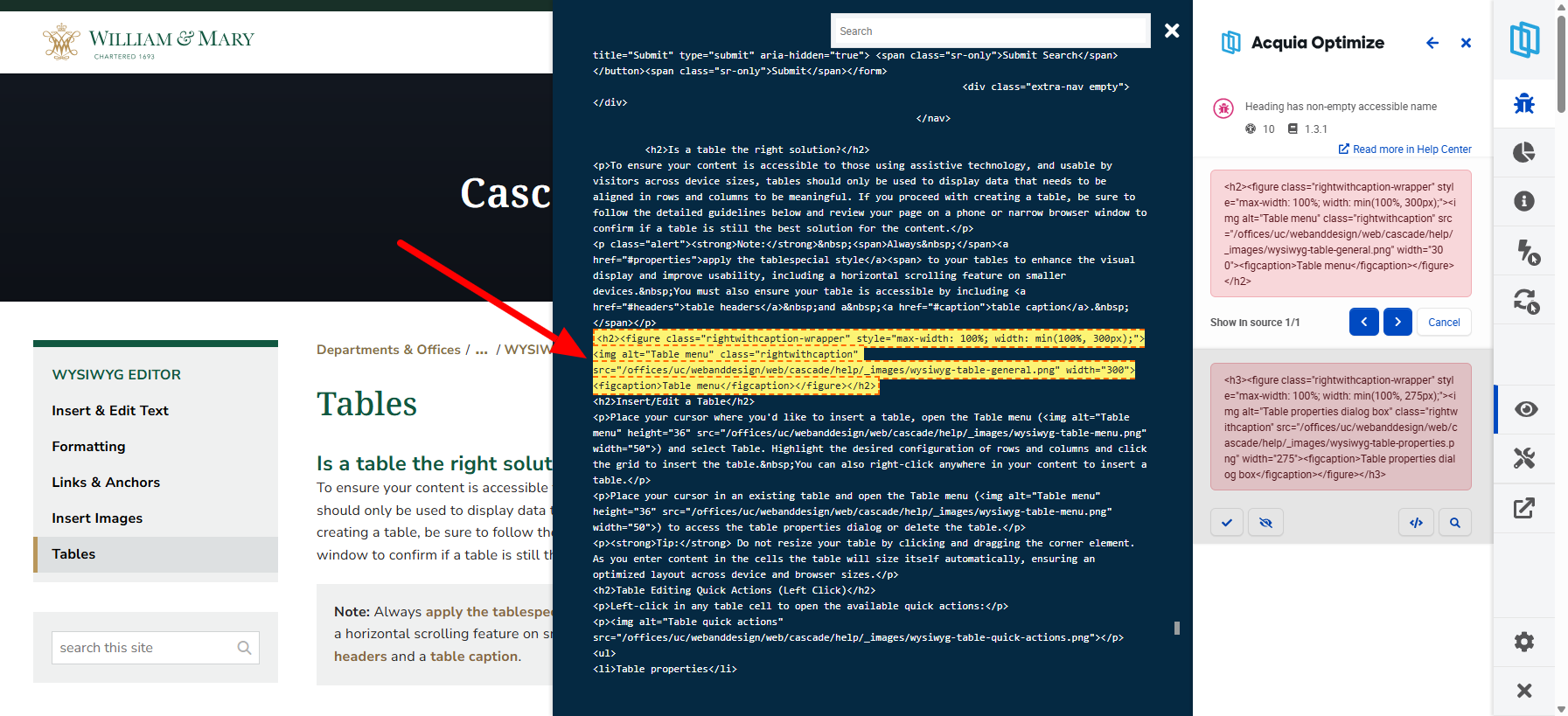
- If it cannot visually highlight the issue, select the HTML (< / >) icon by each rule and the extension will try to highlight the issue in the source code of the page (see Screenshot 4). While you may not be familiar with html, look for context clues that will help you then locate the issue on the visible page.
Tip: You can also use the browser extension while viewing any of your webpages to see the latest scan data about the page.
Accessibility Checks Configured for Content Editors
The "William & Mary" domain in Acquia Web Governance has been configured to ignore most issues that would require access to the page templates or source code to remediate, keeping it focused on content issues considered actionable by our Cascade editors. As a result, accessibility compliance scores are skewed higher than the posted industry averages on the Accessibility Summary view.
If you access a domain or group other than William & Mary, and you would like to discuss accessibility module configuration options, contact your Cascade Manager or [[creative]].
Issues to Fix (Levels A and AA Required)
These are issues that can be machine-tested and are therefore errors that must be fixed for compliance.
| Name of Check | Explanation | Suggestions |
|---|---|---|
| Complex data table is missing ID and/or header attributes to associate headers with data cells | Likely indicates that a table has two layers of header cells or other incorrect use of header cells |
|
| Element marked as hidden must not be included in tab navigation | May indicate a template issue |
|
| Elements intended as presentation-only contain focusable content |
Indicates the use of links in collapsible list headings (these elements serve to open and close the expandable content and must not also include links) |
|
| Form field is missing an accessible name | Cascade sites have a very limited use of form fields but if the issue is listed, it indicates there is one that needs remediating for compliance |
|
| Heading is missing an accessible name |
Likely indicating:
|
|
| Iframe element is missing an accessible name | Indicates an embed in the source code of the page is missing a required element |
|
| Image is missing alternative text | Indicates an image on the page with no "alt attribute" in the source code. This is rare because Cascade currently always includes an alt attribute, but it may occur on some older pages. |
|
| Incorrect use of ARIA state or property | Likely indicates one or more aria labels in the source code of the page that were copy/pasted in through the WYSIWYG editor inadvertently |
|
| Layout tables must not contain caption elements | Likely indicates use of a table for layout/formatting purposes. All tables in Cascade require a caption because tables should only be used to organize data meaningfully into rows and columns, or for collapsible lists. |
|
| Layout tables should have an empty summary attribute or none at all |
This will be rare and indicates an old hidden table summary is still included in the html of the page. Cascade now uses a caption to provide a description to those using screen readers. |
|
| Table header is not associated to any data cells | Indicates that table header cells do not have a scope assigned |
|
Warnings (Levels A and AA Required)
These are issues that will require your manual review. They may be issues for you to address, but they require your manual investigation to confirm.
| Name of Check | Explanation | Suggestions |
|---|---|---|
| Are white space characters used to format tables? | Likely indicates an editor has tried to adjust the visual layout or meaning of the content using spaces |
|
| Do links with the same name serve the same purpose? | Indicates the page is using the same link text repeatedly which makes it more difficult for a visitor using a screen reader to determine which links to visit; frequent culprits are link text such as "learn more" or "click here" |
|
| Is the image alternative text descriptive enough? |
Indicates images and graphic elements that have an accessible name defined in the code. Your task is to confirm that the text in the accessible name serves as a good text alternative for the image. |
|
| Is there a text alternative for the multimedia file? |
Indicates links multimedia file types (including GIFs) that may be missing a text transcript |
|
Issues to Review (Levels A and AA Required)
Reviews require manual judgement. While these are included in the count of "failing issues" they are not necessarily an issue at all. These are flagged for content elements that require proper usage to avoid accessibility barriers and their location is simply being identified for you to encourage regular review to assure compliance — they can only be verified as accessible through your manual review.
| Name of Check | Explanation | Suggestions |
|---|---|---|
| Are headings used for formatting? | All pages that include headings are flagged for this review |
|
| Are the table captions identifying the table? | All tables are flagged for this review |
|
| Does text over background image meet minimum contrast requirements? |
Indicates an image on the page may contain text with poor contrast (the luminosity contrast ratio between text and background color in all images must be at least 5:1). We strongly recommend no text content be communicated in images unless it is a logo or similar brand mark that is not trying to convey content. This ensures that the text can be resized, read by screen readers, and adapted to different user needs. |
|
| Does the audio file have a text transcript? | Indicates use of an audio file |
|
| Do the images contain text? |
Indicates a suspected image with text in it We strongly recommend no text content be communicated in images unless it is a logo or similar brand mark that is not trying to convey content. This ensures that the text can be resized, read by screen readers, and adapted to different user needs. |
|
| Is table markup used for all table information consistently? | Indicates that the page may be presenting content in a tabular manner other than using a true table, for example multiple tab spaces or multiple pipe characters in a single line. |
|
Is the heading descriptive enough? |
All pages that include headings are flagged for this review |
|
| Is the image a flickering GIF? | Indicates use of a GIF file with a width and height larger than 25 pixels |
|
| Is the pre element used to create a table? | Typically only indicated for pages containing visible code samples |
|