Skip to main content

Controlling Folder Order
Display order is often controlled by folder order. This is the case for many assets, most notably your menus. Other assets that rely on folder order include photosets, features, announcements, directory pages (if not using the default alpha order), homepage news blocks and Cascade galleries.
Instructions
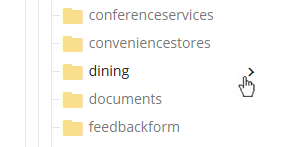 Navigate to and select your folder.
- Click the small arrow next to the folder name.
- When you select a folder successfully, it is highlighted in blue.
- Note: clicking the name of the folder opens/closes the folder, but does not select it.
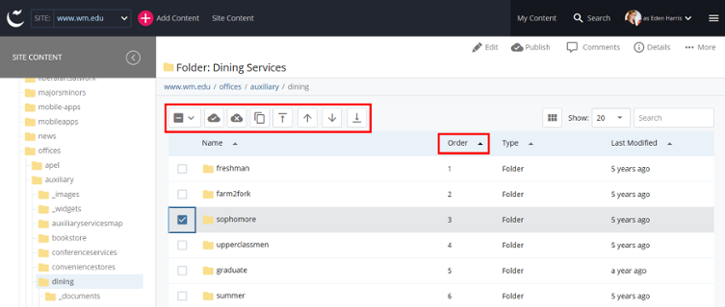
- In the main View pane, select the column header "Order."
- Once "Order" is selected, you can drag and drop the rows to reorder them within that view.
- Additional ordering controls are made available when you select the item: Move to Top, Move Up, Move Down, Move to Bottom.
- Publish the sections of your site impacted by your reordering.
- If you reordered your page menu, you'll need to publish one folder level up.
- If you reorder items in a listing folder, you'll need to publish your listing folder and any pages that display a feed of those items, such as a listbox or a homepage news block.