 Skip to main content

Microsoft Multi-factor Authentication
Microsoft Multi-factor Authentication (MFA)
William & Mary's uses Microsoft's multi-factor authentication service. It provides an additional level of security to prevent unauthorized access to a variety of systems. Multi-factor authentication helps protect against increasingly sophisticated security threats, like phishing, and thwarts unauthorized use of your login credentials.
We support the following multi-factor authentication methods within Microsoft. We recommend everyone configure at least two methods. You can manage your authentication methods by going to your Microsoft Security Info.
- Microsoft Authenticator App
- Passkeys
- SMS codes
- Phone Calls
- Codes from other MFA Apps (eg. Duo, Google Authenticator, Okta)
Setup Microsoft Authenticator
More detailed instructions from Microsoft are also available.
Note: Before you begin, have your mobile device and a laptop or desktop computer available to complete the setup.
| Steps for setting up the Microsoft Authenticator App | |
|---|---|
| 1. On your mobile device, install the Microsoft Authenticator App (iOS | Android). | |
| 2. On your laptop/desktop computer, go to https://aka.ms/mysecurity. Click on "+ Add sign-in method". | 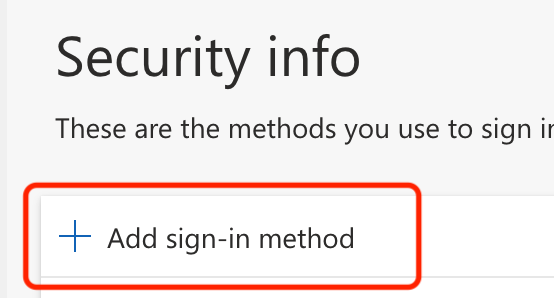 |
| 3. Select Microsoft Authenticator from the list. |  |
| 4. Click Next to show the QR code you will scan later. | 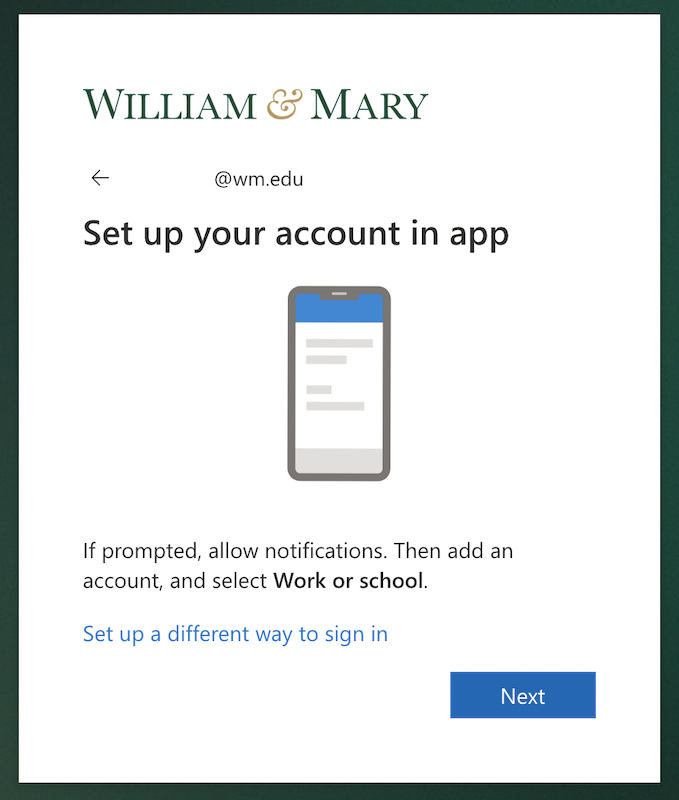 |
| 5. On your mobile device, open the app and select the button that says "Scan QR code." Do not select the button that says "Add work or school account." | 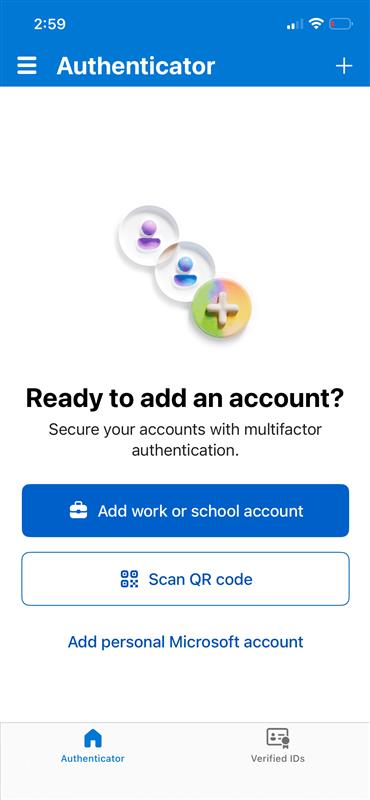 |
| 6. Using your mobile device, scan the QR code displayed on your computer screen. | 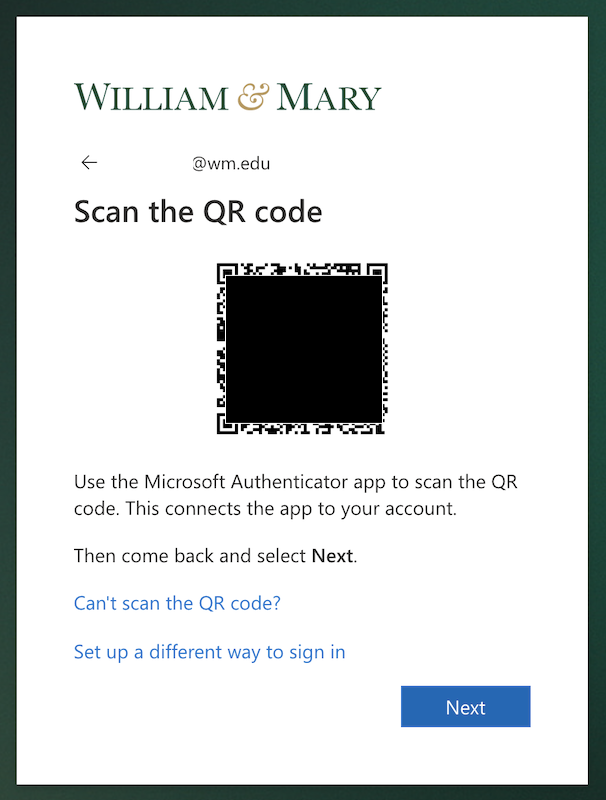 |
| 7. Once you've scanned the QR code and the account has been added to the Authenticator App you will be shown a number to verify in the Authenticator App. Type that number into your phone when prompted. | 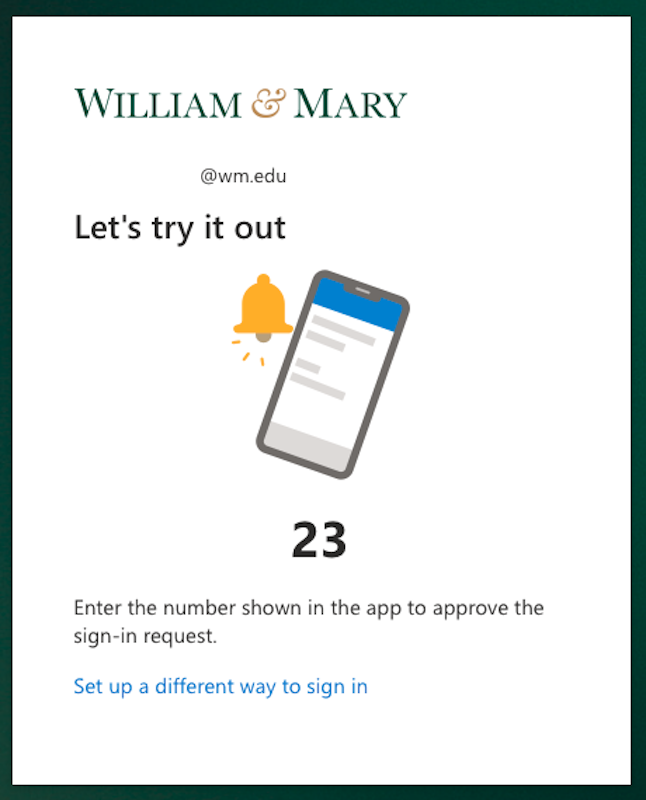 |
| 8. Success! | 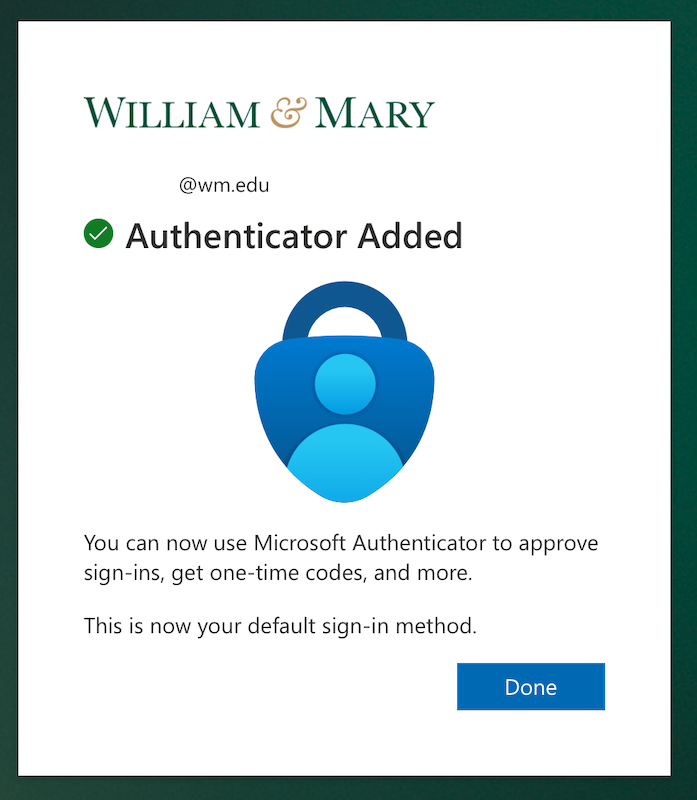 |
Setup Other Authenticator Apps
To use a different authentication app to generate codes for Authentication, go to your Microsoft Security Info, click on the plus to add an authentication method and select Microsoft Authenticator. Make sure to click on the "I want to use a different authenticator app" link and follow the instructions (this link might be small and easy to miss).