 Skip to main content

Account Activation
Step 1: Get your W&M Username
You will be notified of your W&M username via the email address used in your application for employment (faculty/staff) or letter of acceptance (students). The message will come from the following departments, depending on your association with the university:
- Faculty, Staff and Affiliates - Information Technology
- Undergraduates - Office of Undergraduate Admission
- Graduate Students - The appropriate office of graduate admission
- Unclassified Students (Undergraduate and Graduate) – Registrar
Your W&M Username is usually - but not always - the first initial of your first name, first initial of your middle name (if you have one), and your last name. (Example: txgriffin). When signing in to W&M services you will need to add the William & Mary domain, @wm.edu, to your W&M username (Example: txgriffin@wm.edu).
Step 2: Set Your Password
Once you have your W&M username you will use the Microsoft Self-Service Password recovery to set your password.
| 1. Go to the Microsoft Self-Service Password Recovery Site. | 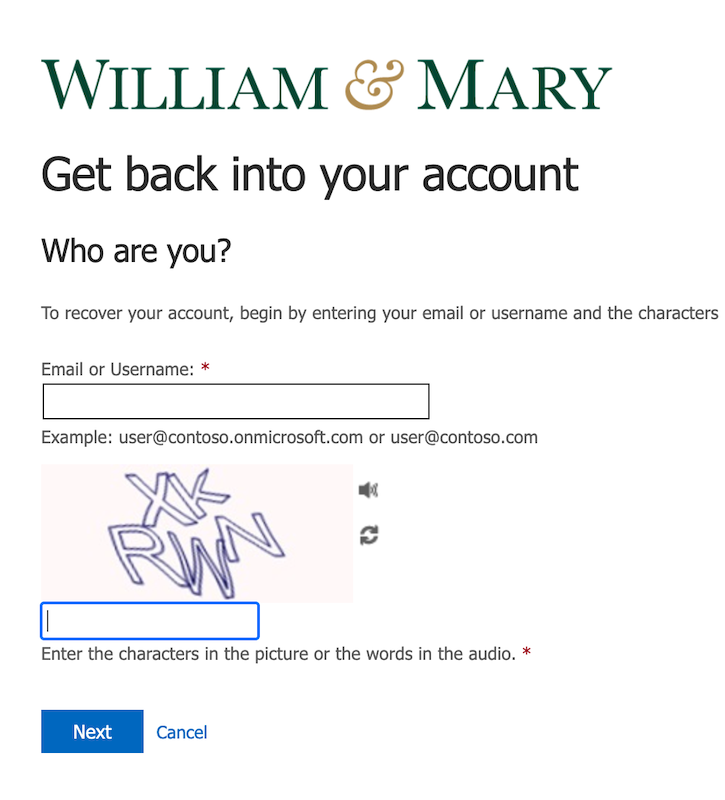 |
| 2. Put in your W&M username, (Example: txgriffin@wm.edu) | |
| 3. Answer the captcha and click next. | |
| 4. Confirm your applicant email address and click the Email button. | 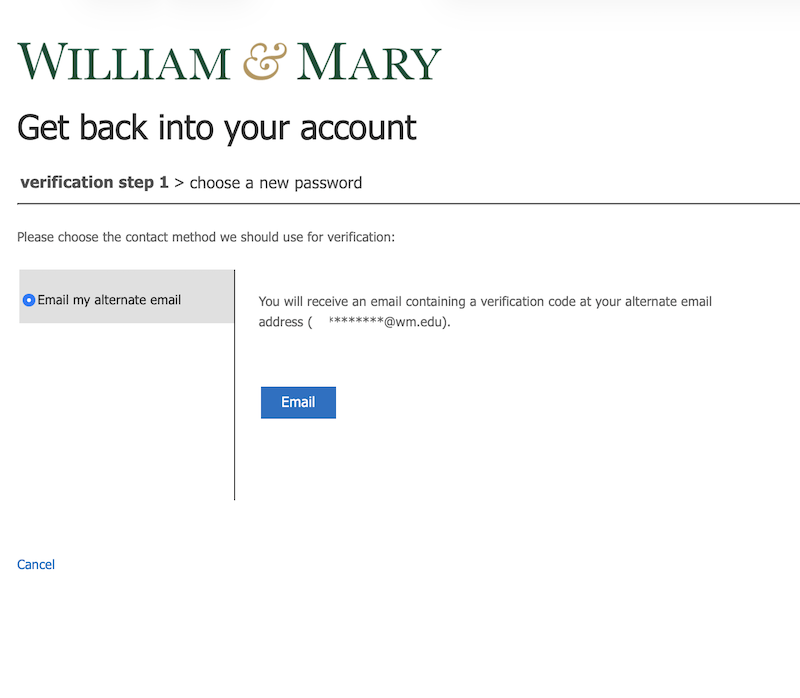 |
| 5. You’ll receive a verification code via your applicant email, enter it and click next. | 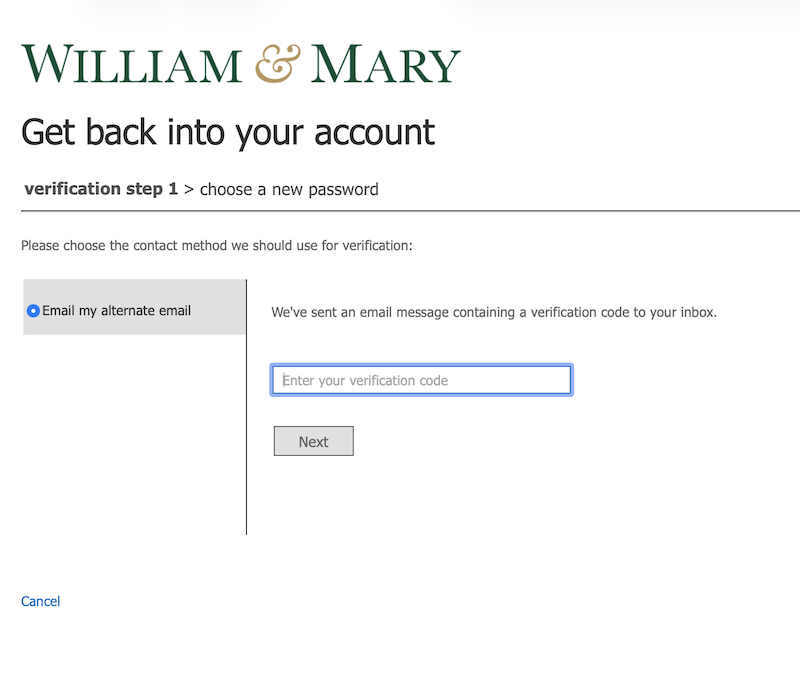 |
| 6. Set your W&M Password. We require passwords to be a minimum of 15 characters. Passwords from Microsoft's global banned password list or from a list of W&M banned passwords will be rejected. | 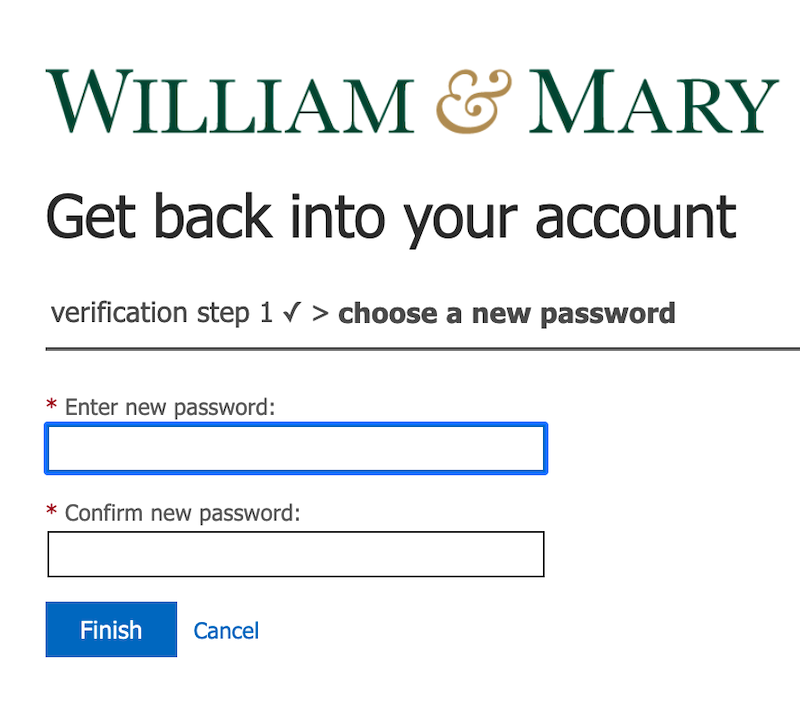 |
| 7. Success! | 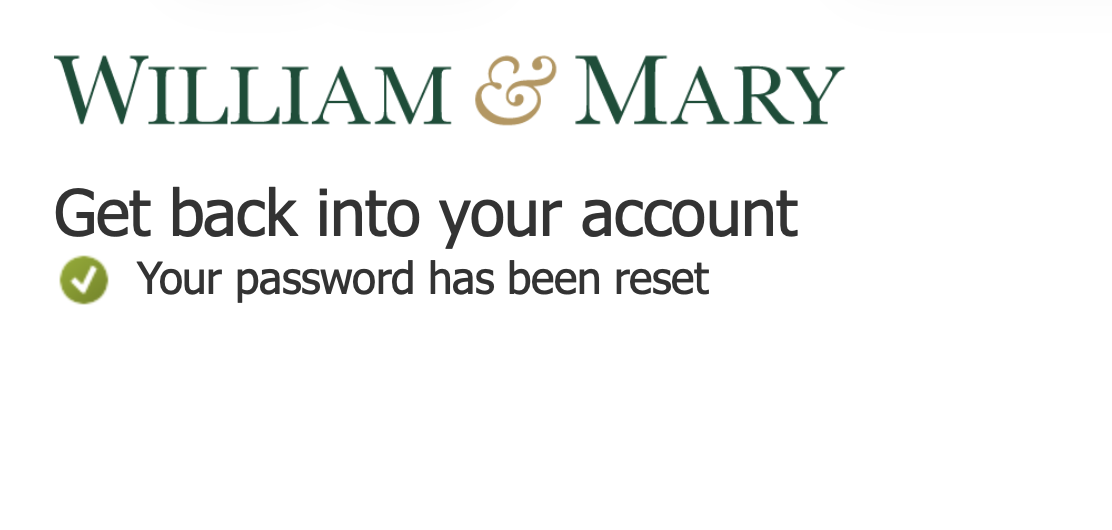 |
Step 3: Setup Microsoft Multi-factor Authentication (MFA)
Once you have set your password you can configure Microsoft Authenticator to use for multi-factor authentication for your W&M account.
| 1. Go to My Account at Microsoft. You will need to enter your W&M username, click next, and then the password you just set and click Sign In. | 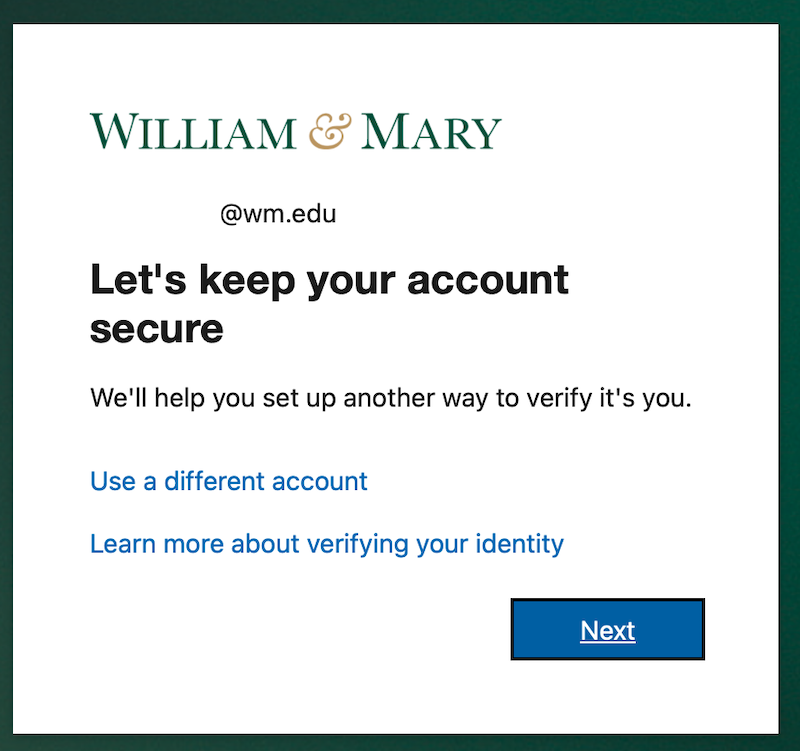 |
| 2. Once you have signed in you should be prompted to start the Microsoft Multi-Factor onboarding process. | |
| 3. Install the Microsoft Authenticator App on your mobile device. |  |
| 4. Once the app is installed select "Add work or school account". If you've used Microsoft Authenticator before click on the + at the top of the app or the qr code icon in the bottom right. | |
| 5. Click Next | 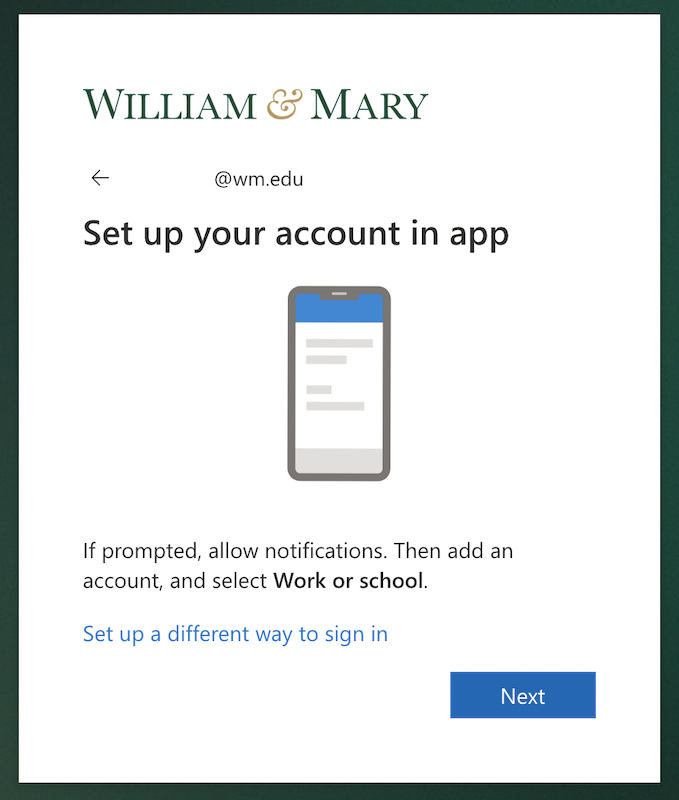 |
| 6. Scan the QR code displayed on your screen with the Authenticator App. | 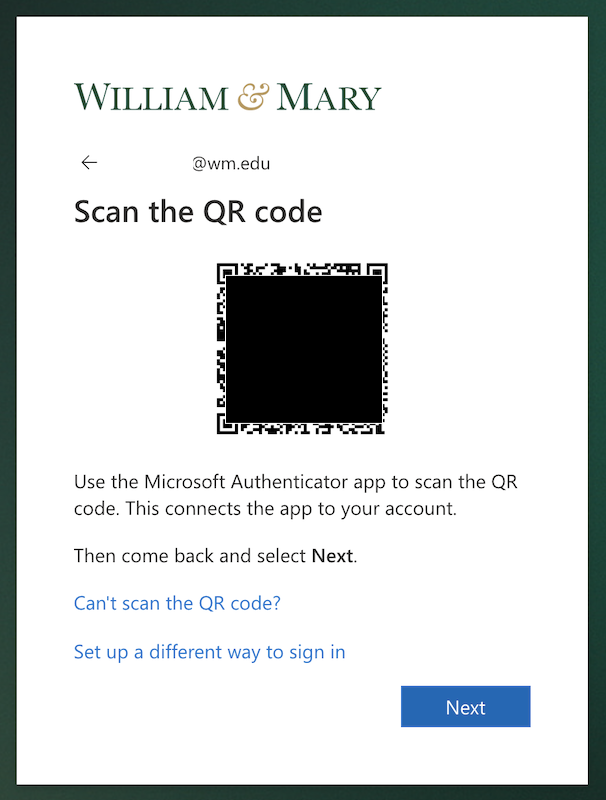 |
| 7. Once you've scanned the QR code and the account has been added to the Authenticator App you will be shown a number to verify in the Authenticator App. | 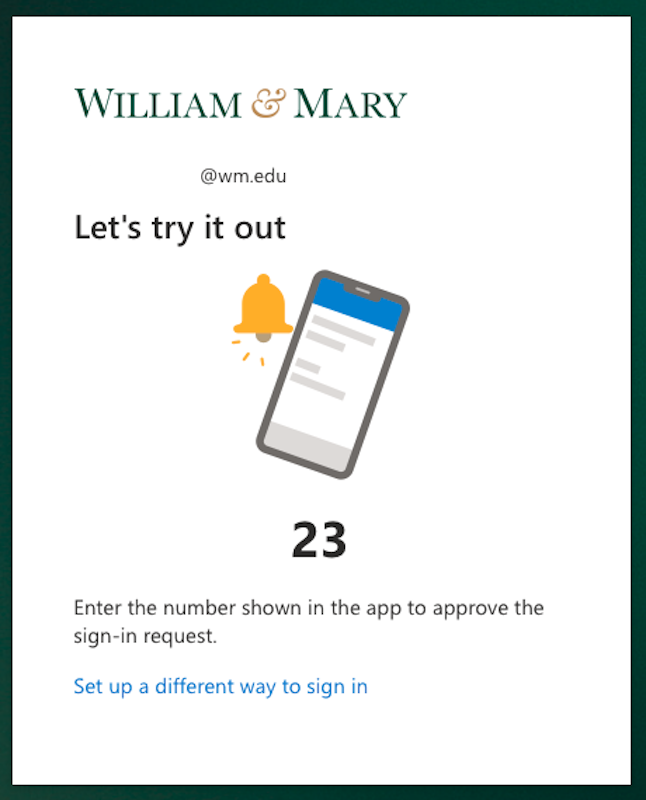 |
| 8. Success! | 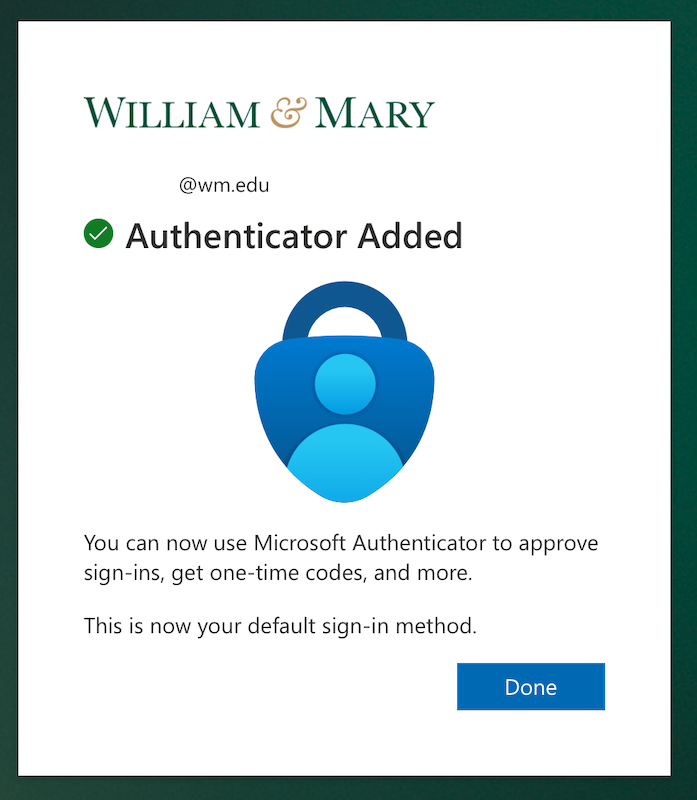 |
I've got my W&M Username, W&M ID number and Password
Congratulations! You are finished.
Now you can check-out things like your W&M email account, Blackboard, Workday or use Banner Self-Service (via myW&M).
Keep in mind that your password can be updated an any point. You can update it by going to the Microsoft My Account site and selecting Change Password from the menu.
Questions? Contact the Technology Support Center (TSC)
757-221-4357 (HELP) | [[support]] | Jones 201, Monday - Friday, 8:00 am - 5:00 pm