Close menu William & Mary

Canva Enterprise for W&M

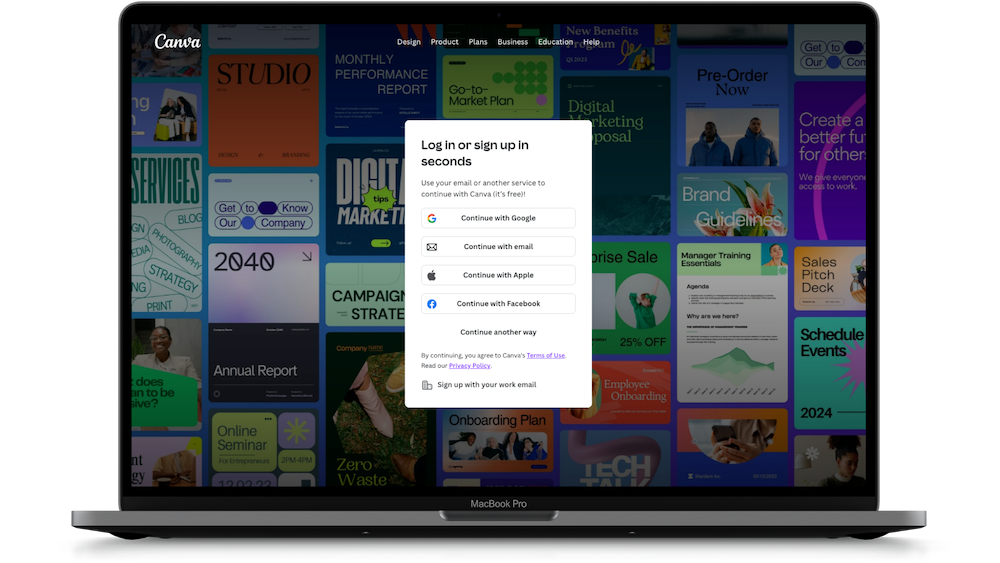
Canva login screen

Canva Enterprise makes it easy to create professional, on-brand designs. Access is currently limited for faculty and staff, and we are working to add approved users soon. All current William & Mary students are eligible to create a complimentary account through W&M’s Canva Enterprise platform.

Are you a W&M student? Log in now to access W&M's Canva Enterprise and start designing and bring your ideas to life.

Are you W&M faculty or staff? If your office currently pays for a Canva account, please reach out to IT to express your interest in transferring to the university's Enterprise account through a chargeback system. This would give you access to the W&M brand kit, templates and any new brand assets developed in the future.

Having trouble logging in with your wm.edu email? Please request help from IT.
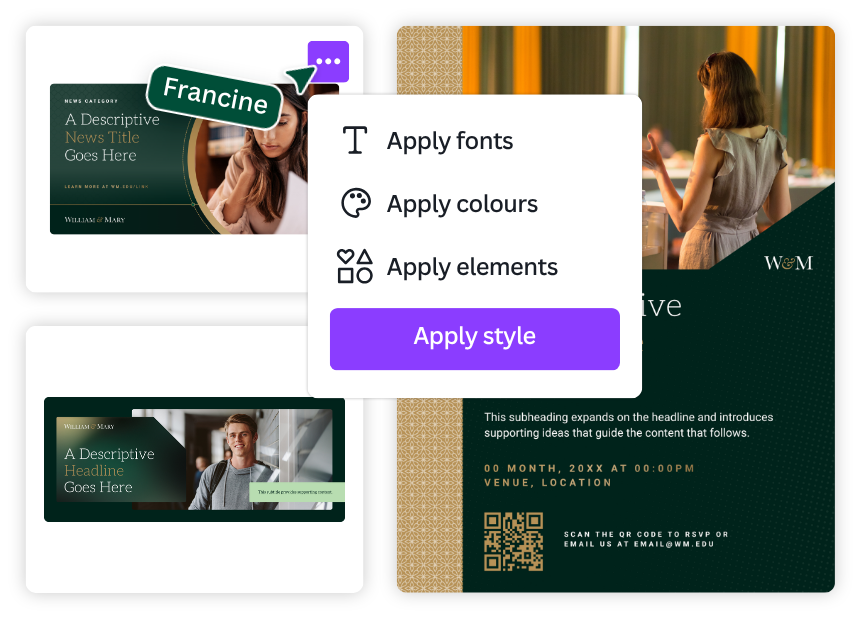
Explore designs created just for you

Users within the W&M Canva Enterprise account have access to university designs, templates and a W&M brand kit, making it easy to create materials that follow university brand guidelines.

Copy designs from one account to another

Do you already have a Canva account with a personal/non-work email address? You can copy a design from your existing account to your new Enterprise account by sharing an editable version of your design. Follow these steps:

  1. From Projects, look for the design, file or folder that you want to copy.
  2. Hover your mouse over the thumbnail, click on the More icon that appears and select Share.
  3. Enter the email address of the account you want to send the copy to.
  4. Set permission setting to Can Edit.
  5. Log out of your current account and log into the one where you want to transfer the design, file or folder.
  6. Open the shared design, file, or folder from the email you received.
  7. From the editor menu bar, click File.
  8. Select Make a copy to duplicate the design, file or folder in the account you’re on.

Copy designs from one team to another

Are you a team member of several teams using your W&M email address, and you’d like to copy a design, file or folder from one team to another? Follow these steps:

  1. From the homepage, go to Projects and find the design, file or folder you want to copy.
  2. Hover over the item and select the More icon.
  3. Select Copy to Another Team.
  4. Choose the team where you want to send the copy.
  5. Select Copy to confirm.
  6. Wait until we’ve successfully copied the design, file or folder to the other team.

Canva FAQs

Need help?

Explore Canva’s Design School for step-by-step tutorials, or visit the Help Center for quick answers.