 Skip to main content

UHR Workday Tip of the Month - Workday Navigation Made Easy
Looking for ways to save time and navigate Workday more efficiently? This month's tips highlight several helpful features that can make it easier to find information, stay organized, and access the resources you use most often.
In this guide, you'll learn how to:
- Use Inbox filters to quickly find tasks that require your attention.
- Understand how long items remain available in your Inbox and Archive.
- Bookmark frequently used tasks and reports for quick and convenient access.
- Use common Workday prefixes to quickly locate employees, positions, job requisitions, learning records, and other frequently accessed information.
Whether you're new to Workday or a seasoned user, these simple tips can help you work more efficiently, stay organized, and get the most out of Workday.
Workday Inbox Filters and Archive
Your Workday inbox can quickly fill with tasks awaiting action. Using Inbox Filters and Archive can help you locate tasks more efficiently, stay organized, and track your Workday activity.
Using Inbox Filters
Inbox filters allow you to narrow the list of tasks displayed in your Inbox, making it easier to find the items that require your attention.
To Filter Your Inbox:
- Select the Inbox icon in the upper-right corner of the Workday home page.
- Select Filters
- Click on Manage Filters
- Click on Create My Tasks Filter
- In the Description field, enter a name for the filter (for example, My Tasks or Learning Assignments
- In the Business Process Type field, select a business process from the drop-down list or enter the name of the business process and press Enter to populate the field.
- In the Task(s) field, select the task type(s) you want to include and press Enter to add each selection.
- (Optional) In the Conditions field, specify any additional criteria to further refine the results.
- And/Or Source: Choose whether to use “And” or “Or” logic
- External Field: Select the field to filter on
- Relational Operator: Choose the operator (e.g., less than, greater than)
- Comparison Type: Specify the type of comparison
- Comparison Value: Enter the value for comparison
- Click OK to save the filter
- Click Done
Tips:
- Use filters to quickly locate tasks awaiting action
- Filter completed tasks to verify that a process was submitted or approved
- Combine filters with the search field to locate specific tasks more quickly.
Using the Inbox Archive
Archive stores tasks that have been completed, cancelled, or are no longer active in your inbox.
To Access the Archive tab:
- Select the Inbox icon
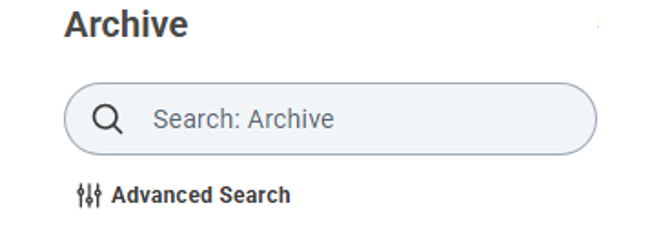
- Select the Archive tab
- Use the search field or filters to locate a specific task
What You Can Find in Archive:
- Completed approval tasks
- Submitted requests
- Reviews and acknowledgments
- Historical business process actions
- Cancelled tasks
Tips:
- If a task no longer appears in your inbox, check Archive
- Review archived items to confirm when approvals or submissions occurred.
- Use Archive as a quick reference for recent Workday activities without running a report.
- Archived items are automatically removed after 90 days so be sure to review or save any information you may need before it is no longer available.
How to Mark Tasks and Reports as Favorites in Workday
Adding frequently used tasks and reports to your Favorites makes them easier to access from your Workday home page and menu.
Add a Task to Favorites
- Use the Search bar to find the task
- Open the task
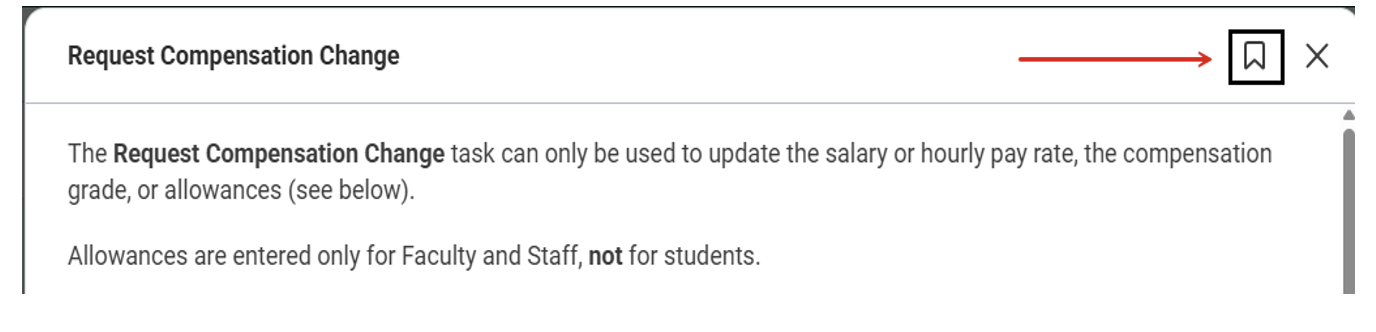
- Click on the Bookmark icon in the top right corner to save to Favorites
Example: Request Compensation Change task
Add a Report to Favorites
- Use the Search bar to find the report
- Open the report
- Click on the Related Actions, hover of Favorites, click on Add
- Click OK
Note: Some reports may not include an option to add them to Favorites, depending on the report's configuration and your security permissions in Workday.
Remove a Task or Report from Favorites
- Click on the Person icon in the upper-right corner of the Workday home page
- Click on Favorites
- Click on Manage Favorites
- Click on the “X” next to the task you want to remove
- Click OK
- Click Done
Tips
- Favorite frequently used reports such as supervisory organization reports, worker reports, or compensation reports.
- Favorite tasks you perform regularly, such as Create Position, Change Job, or Request Time Off.
- Favorites are personal and only visible to you.
- Favorites follow you regardless of which device you use to access Workday.
Workday Prefixes
Workday prefixes are abbreviations that appear at the beginning of records, ID’s, and search results. Think of prefixes as labels that help categorize Workday data and make searching easier.
Quick Tip: Enter ?: in the Workday search bar to view all available Workday prefixes and their descriptions.
Here are a few frequently used prefixes to assist with your searches:
| Prefix | Description | Example |
|---|---|---|
| JR | Job Requisition = an open position being recruited for | jr: jr101354 |
| ID | Employee ID = an employee record number | id: 931108781 |
| POSITION | Position = a specific position within an organization | position: ST009L-005 |
| CANDIDATE | Candidate = an applicant in the recruiting process | candidate: Mickey Mouse |
| PH | Pre-Hire = an individual who has accepted an offer but has not yet become an employee | ph: Donald Duck |
| LRN | Learning Item = a training course or learning content | lrn: Fire Safety |
| LOC | Location = identifies a physical work location | loc: Jones Hall |
| JOB | Job Profile = a standardized description for a job | job: JP0284 |