Skip to main content

Workday Go Live Checklist: Week 1
Summary
Workday brings intuitive navigation, real-time access to information, and improved self-service tools right to your fingertips. Use this checklist to get started!
Full Description
Workday brings intuitive navigation, real-time access to information, and improved self-service tools right to your fingertips. Use this checklist to get started!
Accessing Workday
- To access Workday, it is recommended to use Google Chrome (the preferred browser by Workday).
- Navigate to W&M Workday Landing Page (bookmark this page).
- Log in with your SSO credentials.
- You may be prompted to authenticate via Duo.
Check Your My Tasks Inbox and Notifications
You can access your My Tasks through both mobile and desktop.
- Access by clicking the My Tasks icon next to your profile icon in the top right of the screen.
- Select All Items to view your business process tasks, approvals, and to-dos.
- Note: some of these tasks might be the result of the catch-up activity that has occurred over the last month. Your action is still necessary.
- Explore the Archive tab where any past submitted or approved tasks are kept.
- Access notifications by clicking the Notifications Bell next to the My Tasks Icon.
- Note: Many of these notifications are expired and are a result of catc-up activity.
Record your Time
- Starting July 1, hourly or non-exempt employees will need to begin recording their time worked in Workday. For guidance on this process, review the Enter My Time job aid (pdf).
Review Your Personal Information
- To access your Workday Profile, click the Profile Icon in the top right corner of your screen, then View Profile.
- Add or update your professional photo by clicking Actions > Personal Data > Change My Photo.
- Add or edit your contact information under the Contact tab.
- Add or edit your Emergency Contacts under the Contact tab.
- Modify your Personal Information by clicking the Personal tab.
- Check to see if your Manager is correctly listed by selecting the Summary tab.
- Review your payment and withholding elections options.
- In the left menu, select Pay and view your payment elections and tax elections.
- Add or edit a direct deposit account and manage payment elections. If direct deposit was not previously set up in Banner, you will receive a check in the mail for your July 1 check.
- Expense Payment Elections must be manually updated on July 1. If an employee is anticipating being reimbursed through the Expenses Module for Travel or Non-Travel, direct deposit must be set up.
- View or print payslips by clicking Pay > Payslips.
- View or edit withholding elections by clicking Pay > Tax Elections. Navigate to Federal Elections and/or State Elections and click the Update button at the bottom to edit.
Review your Time Off Balances & Request Absence for Upcoming Planned Leave
- Request absences and review balances by clicking Absence in the left-hand flyout menu.
- View time off balances by clicking View > My Absence. Please note that it may take 2-3 pay periods for your balance to reflect outstanding manual timesheets and retroactive time.
- Submit upcoming and retroactive leave requests by clicking Absence > Request Absence.
- View the Request Absence job aid (pdf) for step-by-step instructions.
- Salaried employees: to record leave that was taken during the June 10-24 pay period, visit Absence > Request Absence and record that time retroactively. Please do this no later than July 15.
MANAGERS ONLY: Review your Direct Reports
- Review your direct reports by going to the flyout Menu and selecting My Team.
- My Team displays the photo, name, job title, and work location of all employees you supervise.
Familiarize yourself with the Workday Support Portal
- Navigate to https://help.workday.wm.edu/ and click on “Submit a Workday Ticket” or “View My Tickets."
- If you experience issues completing any of the tasks in the checklist, please submit a ticket.
- View the Workday Get Help page for access to all support information.
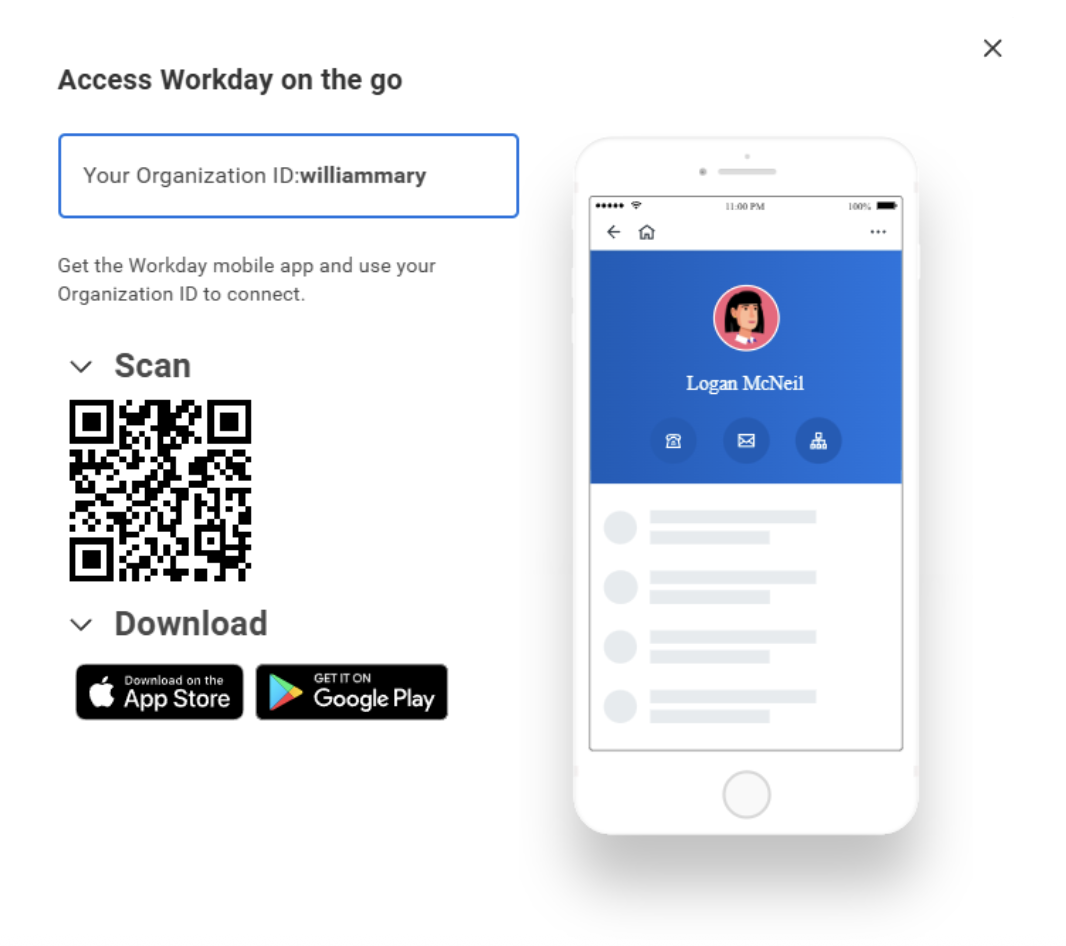
Download and familiarize yourself with the Workday mobile app
- To download the Workday app, search for it on the Google Play Store (for Android) or the Apple App Store (for iOS), or use the QR code below. Once downloaded, open the app and enter W&M’s Organization ID, then log in with your W&M credentials.