Skip to main content

Frequently Asked Questions
General
1. I can't find my protocol when I log in. How do I access it?When you log into SPARCS, you will need to select the applicable "Product" from the dropdown in the top right hand corner of your screen. You can access specific "Log In" guides for Animal Oversight, Hazard Safety, and Human Ethics. |
2. Is your browser running slow? Are you getting a spinning circle but nothing is happening?Access Clearing Your Browser Cache. If you continue to experience issues, please contact sparcs@wm.edu. |
3. My CITI training is not appearing in my account. What's wrong?
|
Animal Oversight (IACUC)
1. I see my protocols that were active in the old compliance.wm.edu system in SPARCS. Why do I not see the details of the protocols in the various content areas of SPARCS?Much of the data in the old compliance system was free text entry and the data tables for the new system were too different to allow us to migrate the data over from the old system. Therefore, migrating the active protocols into the new system in their entirety would have been a largely manual process that would have either required PI’s to re-enter all of their active protocols at once, or to allow someone else to re-enter them and introducing the danger of accidentally changing the protocol during the transfer. |
2. I received an email from the SPARCS system indicating that I have a protocol annual review due. Where do I start?Non-teaching protocols, approved for three years, must undergo an annual review called a Continuing Review in SPARCS. Before the yearly anniversary of the protocol approval date, the researcher will receive an email prompting the completion of the review. The reminder email will include “Annual Review Notification” in the subject and come from the email sender eSiriusWebServer. Once you log into SPARCS, go to the Continuing Reviews Due Alert and select the hyperlink for the protocol due for review. Under the Progress Report Tab, select the status (Continue as is or Withdrawn), complete the Progress Report, address all other questions as indicated, and submit it for review. |
3. Do I need to list undergraduates performing similar research functions as individual Personnel records on my protocol?You do not need to add individual students as separate personnel. You can attach a document in the Personnel section with the list of names and their function. |
4. De Novo Reviews – I received an email from the SPARCS system indicating that my protocol is about to expire. What action do I need to take?Just before the end of the three-year protocol period, the researcher will receive an email prompting the completion of a De Novo review in SPARCS. The reminder email will include “Protocol Expiration” in the subject and come from the email sender eSiriusWebServer. Once you log into SPARCS, go to the De Novo Reviews Alert and select the hyperlink for the protocol due for review. Complete the Progress Report, choose a De Novo Review Action (Protocol will be Renewed or Lapse upon Expiration), answer any other questions, and complete the renewal form. Please check to see if you have any protocols in your De Novo Reviews alert category. If so, complete the review, so the Research Compliance office is clear about your intent relative to your expiring protocols. |
5. I would like other researchers working with me to be able to enter protocols as well as feedback to IACUC reviewer comments on my behalf. How can this be accomplished?Please email sparcs@wm.edu with the name of any researcher who should be assigned to your “PI team”. These individuals will have the ability to enter protocols and comments on your behalf, but they will not be able to submit under your name. The protocol PI is the only one who can complete the submission. |
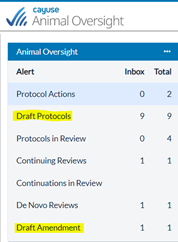
6. Canceling Draft Protocols or Amendments – How do I cancel a draft protocol or amendment?If you have draft protocols or amendments that you do not intend to submit, you may cancel them to clear them from your Draft folders. Access the protocol through the Draft Protocols or Draft Amendment folder as appropriate.
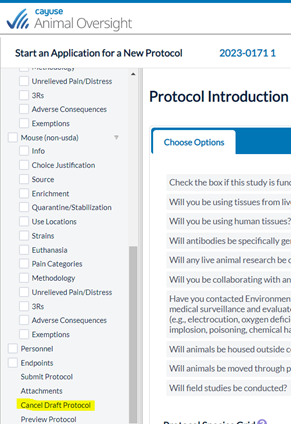
Once you have opened the protocol or amendment, select the Cancel Draft Protocol option from the left-hand table of contents:
On the next screen, enter the cancellation reason and click Submit. |
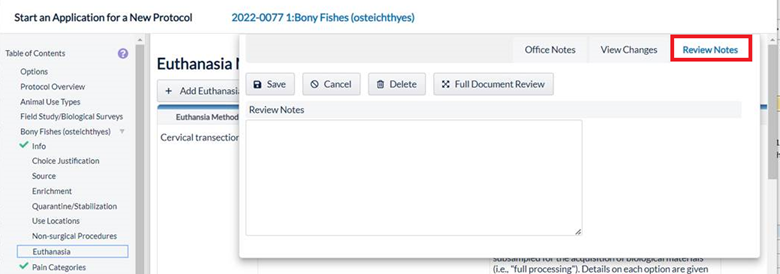
7. Closing Screen Overlays - How do I close the box that is covering part of the protocol screen?Researchers and Reviewers may encounter a scenario similar to the screenshot below, where a screen associated with the protocol review process overlays the protocol itself. To collapse what is displaying over top of the protocol, click on whichever tab is open, which is identified by its blue title. In the case below, it’s the Review Notes tab.
|
8. What should I do if an individual I want to add to a protocol is not listed as an option?All graduate and undergraduate students, faculty, and staff were loaded at the time of system launch. Updates to the People data are being sent to SPARCS weekly. If an individual you need to add to a protocol is not listed as an option, please, contact sparcs@wm.edu to have the individual added. |
Hazard Safety (IBC)
1. I don't see my specific agent listed on the "Infectious Agents/Microorganisms" page. What should I do?The "Agents" list is a set list that can be edited by the IT team managing the SPARCS system. To add your agent to the list, please complete this form detailing your request. |
Human Ethics (IRB)
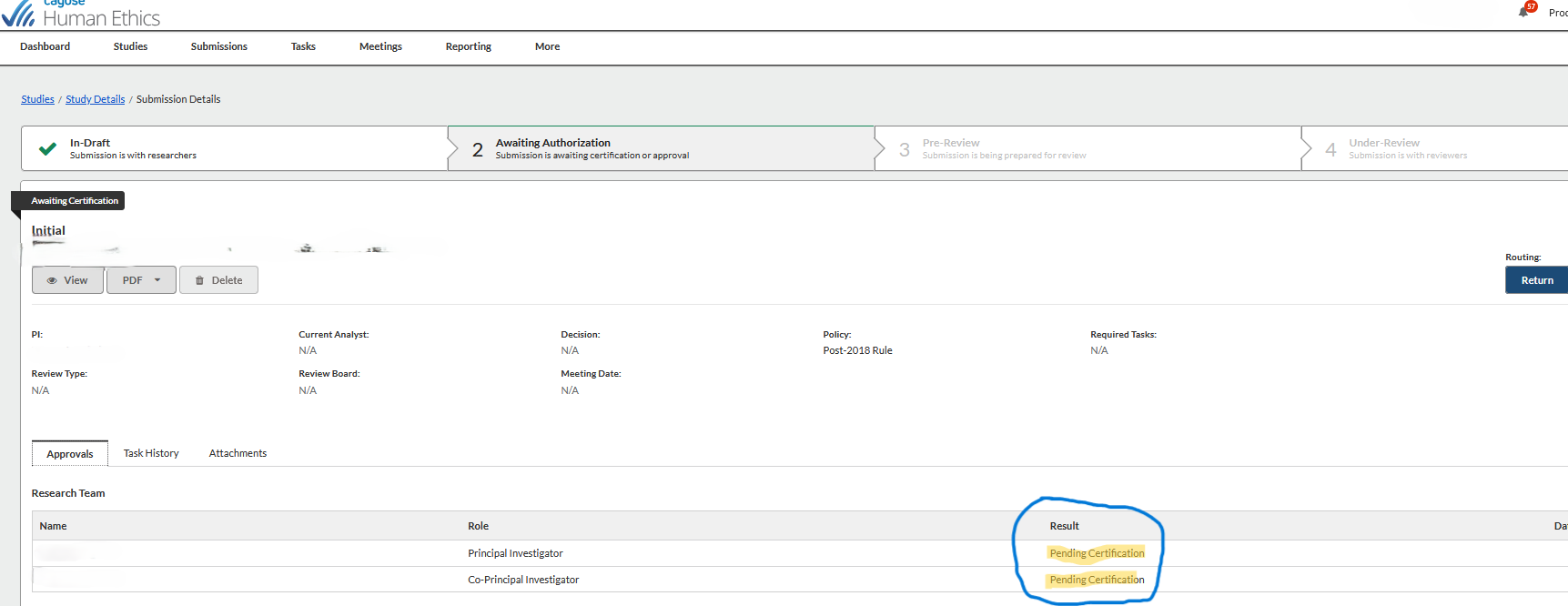
1. I have not had any response from the IRB about my protocol. What should I do?Your protocol may be awaiting action from you or the another investigator.
Applicable Guides:
|
2. My submission is no longer needed. How do I remove it from my account?
Applicable Guides:
|