 Skip to main content

Banner 9 Student Profile
Information for faculty and advisors about the Student Profile
Student Profile provides easy access to information about your students and advisees. The profile displays their program, advisor, schedule, and unofficial transcript. When viewing the profile for one of your advisees, the profile will also display registration time tickets and hold information.
Access the Student Profile For Students in Your Class
- Log in to Banner Self-Service and select the Faculty Services tab
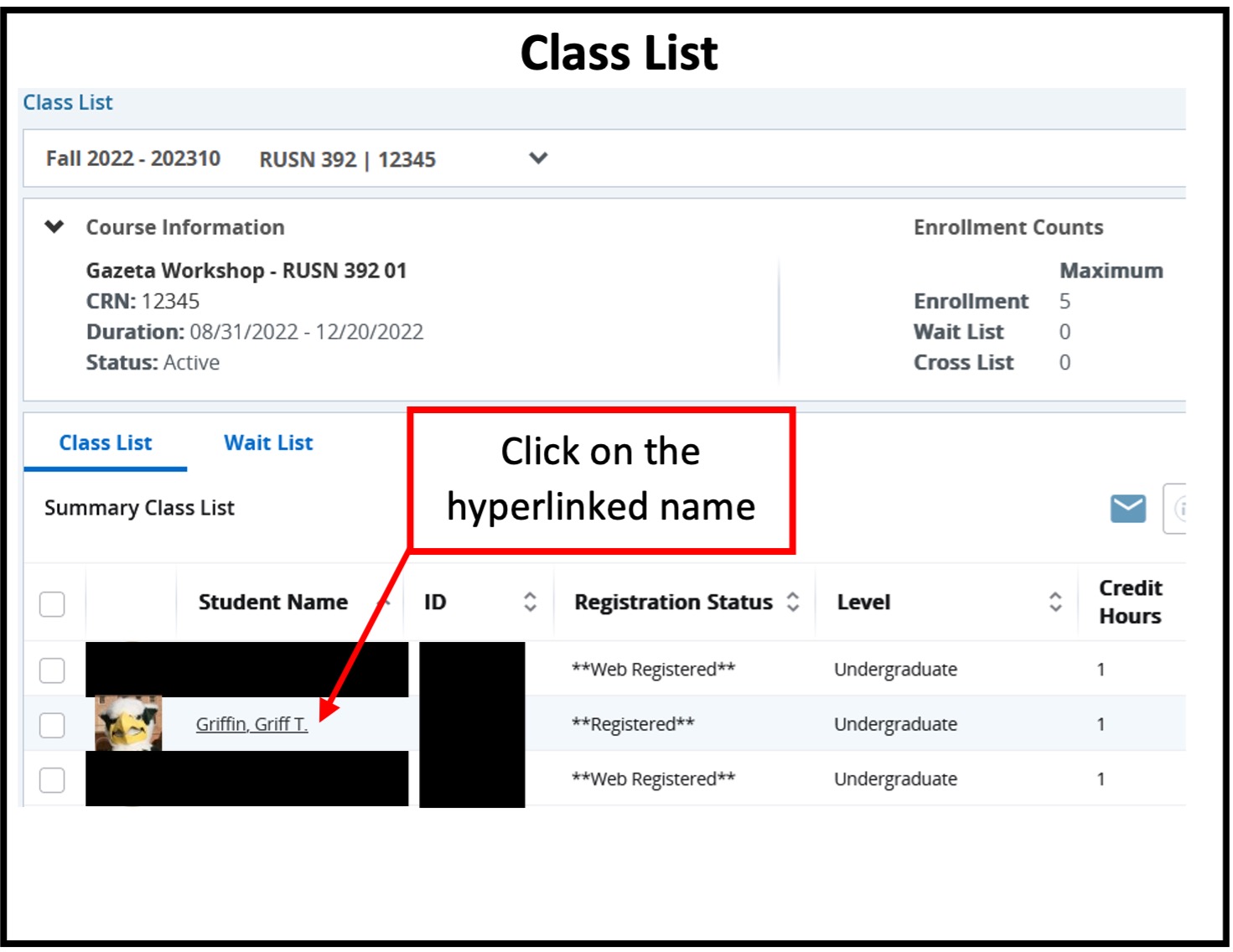
- Open Banner 9 Class List, Midterm or Final Grades, or Registration Overrides. In Class List or Midterm/Final Grades, choose a CRN to view the roster. In Registration Overrides, search for the student
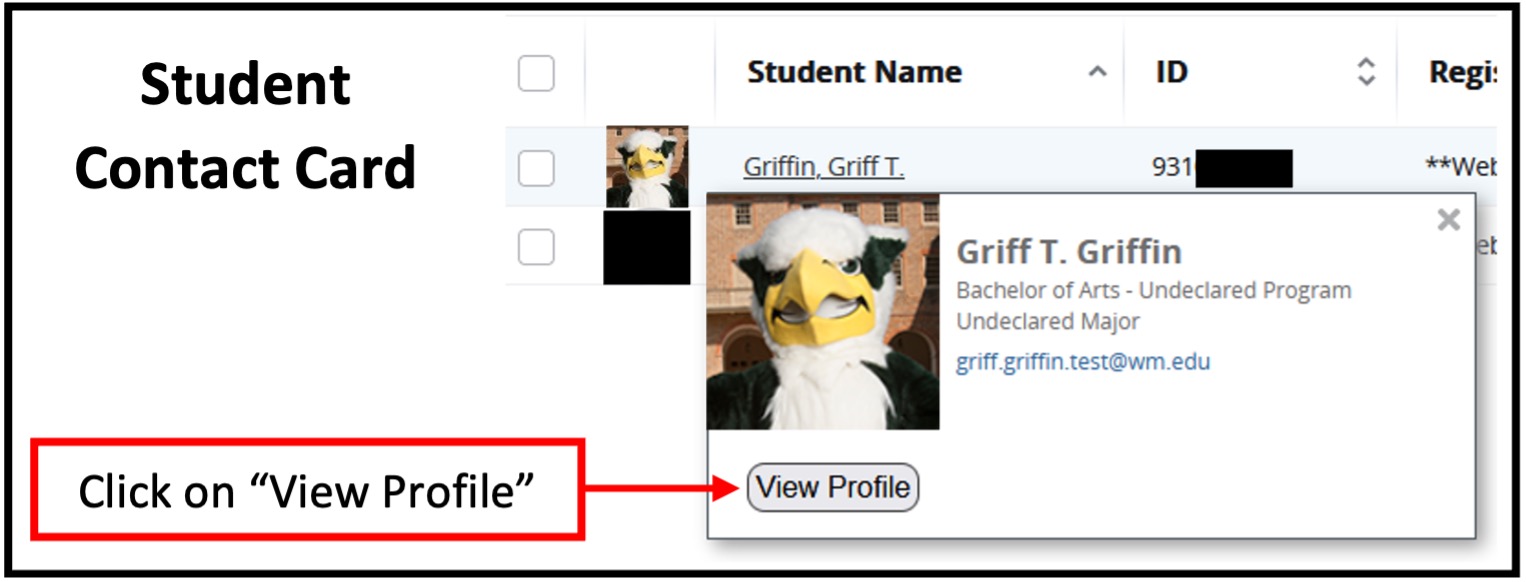
- Select a student's hyperlinked name or select the "View Profile" button on their contact card
- The Student Profile will open and display basic student information. Use the links under the "Additional Links" heading to view their unofficial transcript
Access the Student Profile For Your Advisees
- Log in to Banner Self-Service and select the Faculty Services tab
- Select the Advisor Menu and then select the Advising Profile
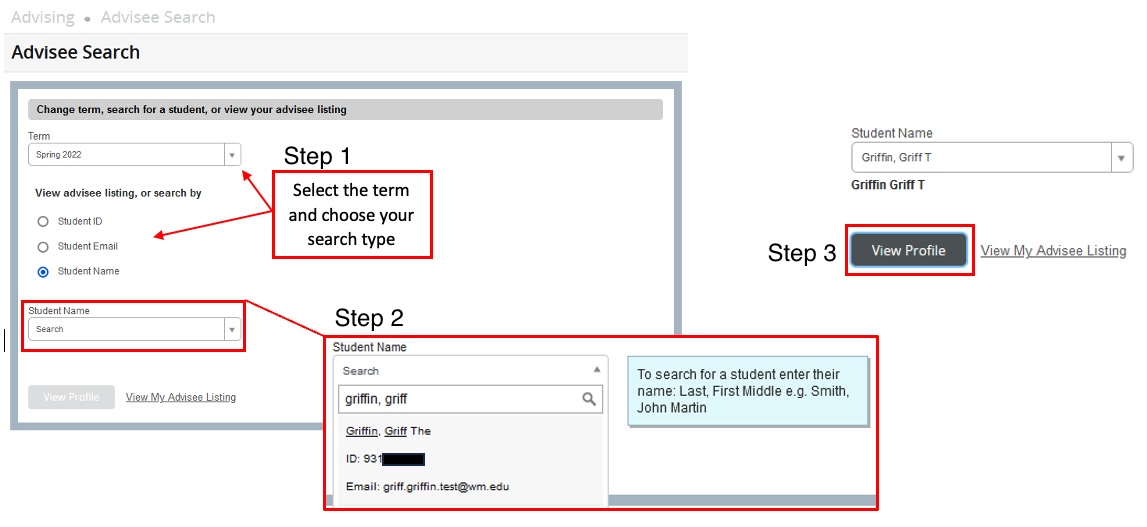
- When the Advisee Search page opens:
- Select the term from the drop-down menu (this is the term you are advising for)
- Select to search by student Banner 93#, email address (includes the @wm.edu), or name (in last name, preferred first name format)
- Once you have searched for and found your student, click the "View Profile" button
- Alternatively, you can view all of your assigned advisees by selecting the "View My Advisee Listing" page
- The Student Profile will open and display basic student information. Use the left-side menu links to view their unofficial transcript, midterm or final grades, or current weekly schedule. You may also view their registration notices (time ticket and PIN information) or any holds the student may have
Using the Advisee Listing Page
- Log in to Banner Self-Service and select the Faculty Services tab
- Select the Advisor Menu and then select the Advising Profile
- When the Advisee Search page opens, select a term from the drop-down menu. (This is the term you are advising for and will also dictate the information displayed in the "Registration Notices" drop-down menu and the "Registered Courses" section of the Student Profile when you open it)
- Select the "View My Advising Listing" link below the search fields
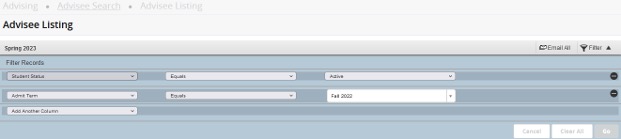
- Filter your advisee listing by selecting "Filter" on the right side. Filtering options include options like admit term and student status (active vs. inactive)
- Once you have selected all of your filters, select "Go" in the bottom right of the filter window to display the list of advisees that meet your filter criteria
- Access your advisee's Student Profile by selecting "View Profile" or selecting their photo on the left side
Need help?
If you have additional questions or need assistance, please contact the [[w|registrar,Office of the University Registrar]] at (757) 221-2800 or [[w|support,IT Support]] at (757) 221-HELP.