Skip to main content
Content Review
Because bad content is worse than no content at all
In Cascade, every piece of content – each asset, whether a file, image or page – has both a content owner and a review date. As an asset’s review date approaches, Cascade notifies the content owner.
William & Mary now requires the regular review of all Cascade content. At university leadership’s direction, all existing content was assigned an owner and review date. The initial review was to be completed – with each asset* reviewed, corrected or removed – by December 15, 2025. This process removes the initial review date and new annually recurring review dates are added to support ongoing maintenance.
Note: Assets* created between September 2025 and September 2026 were temporarily assigned a fixed review date in September 2026, regardless of the date they were created. This is being remedied now and the shortened review periods for these assets will be adjusted to approximately one year after their creation date soon.
Find answers to frequently asked questions about review dates.
*News Stories: Additional guidance will be provided regarding the retention of archival news stories and borrowed news stories. All assets in "news" folders will receive review dates in spring 2027 in anticipation of the upcoming retention and archive policies.
Mark Content as Reviewed
As you review each asset, you need to mark it as reviewed to verify that the content is up-to-date. Not sure if an asset has already been marked as reviewed? Verify the currently assigned review date.
To mark an asset as reviewed, follow these steps:
- Select the asset in Cascade to see its preview, just as you would to edit or publish.
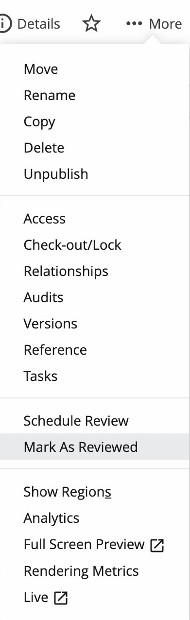
- Instead of selecting “Edit” or “Publish,” select the “More” menu in the same row of buttons.
- If you’re sure the content of this asset is up-to-date, choose Mark As Reviewed. This action takes effect immediately – so please be careful not to mark content as reviewed if you still need to make revisions.
I've marked an asset as reviewed. Why don't I see a new review date?
Many assets were initially assigned a non-recurring review date. When you mark these assets as reviewed for the first time, it clears out the review date. Our team periodically scans the system for these assets and adds their new annually recurring review dates to assist with ongoing maintenance.
Will there be recurring review dates moving forward?
Yes, the goal is to shift into a rolling annual review process as you mark assets as reviewed. Throughout 2026, assets are gradually being assigned annually recurring review dates.
What sort of review date is assigned to new assets?
Newly created assets have no review date assigned by default. Web Development & Strategy periodically assigns these assets a one-year review date that will then automatically recur when the asset is marked as reviewed.
Note: Assets created between September 2025 and September 2026 were temporarily assigned a fixed review date in September 2026, regardless of the date they were created. This is being remedied now and the shortened review periods for these assets will be adjusted to approximately one year after their creation date soon. All assets in "news" folders will receive review dates in spring 2027 in anticipation of upcoming retention and archive policies.
What if I've reviewed content but it still shows in my Stale Content?
Stale content means "not edited" for a period of time, but if it was reviewed and remains accurate, it does not matter that the content is identified as "stale." What's important is that you mark the asset as reviewed. In your ongoing work, you can use the data available in the stale content report or dashboard widget to guide you towards content that has not been updated in some time and is therefore more likely to be out of date and in need of reviewing.
Contact your Cascade Manager if you require assistance in changing ownership or altering review dates.
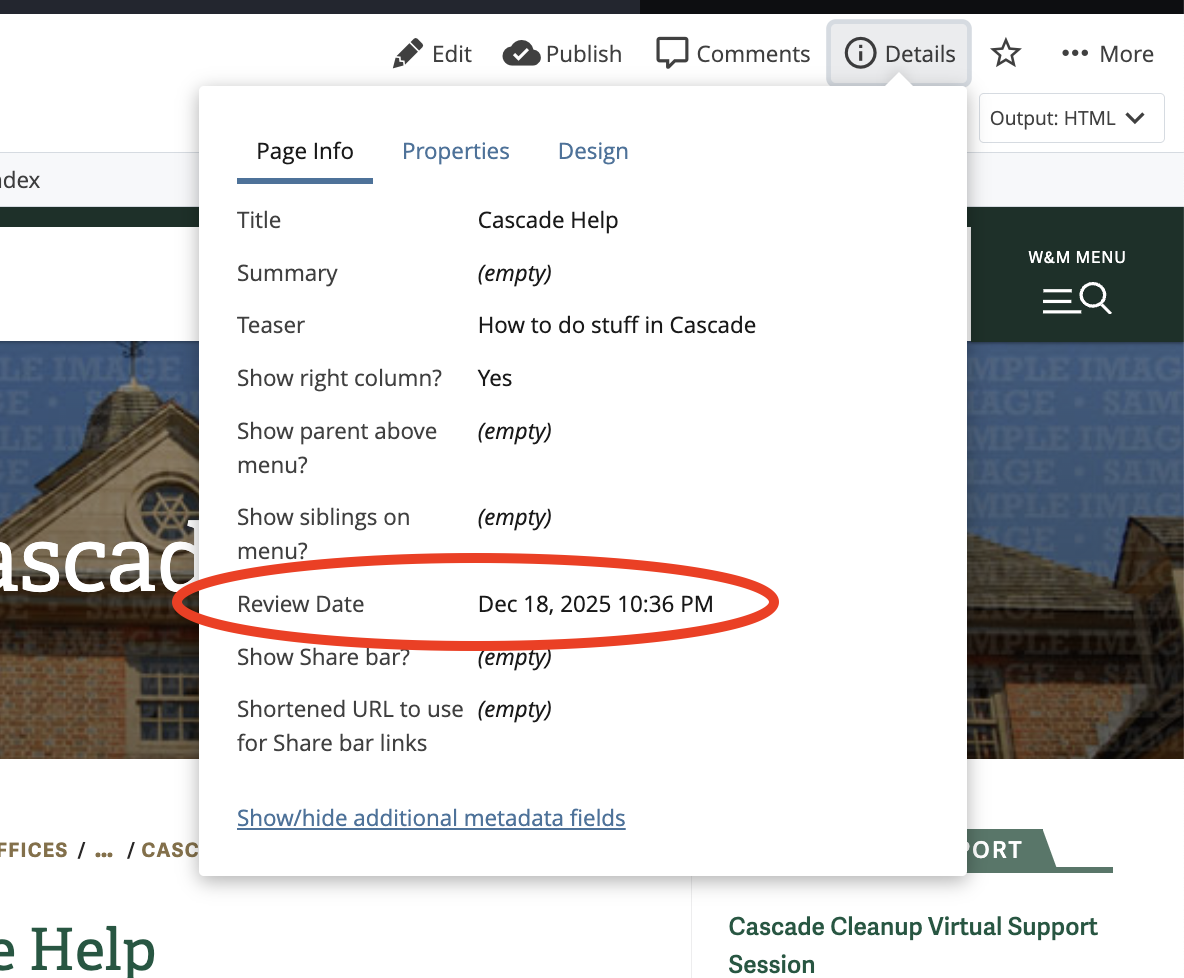
Verify the Currently Assigned Review Date for an Asset
- Go to the asset in Cascade
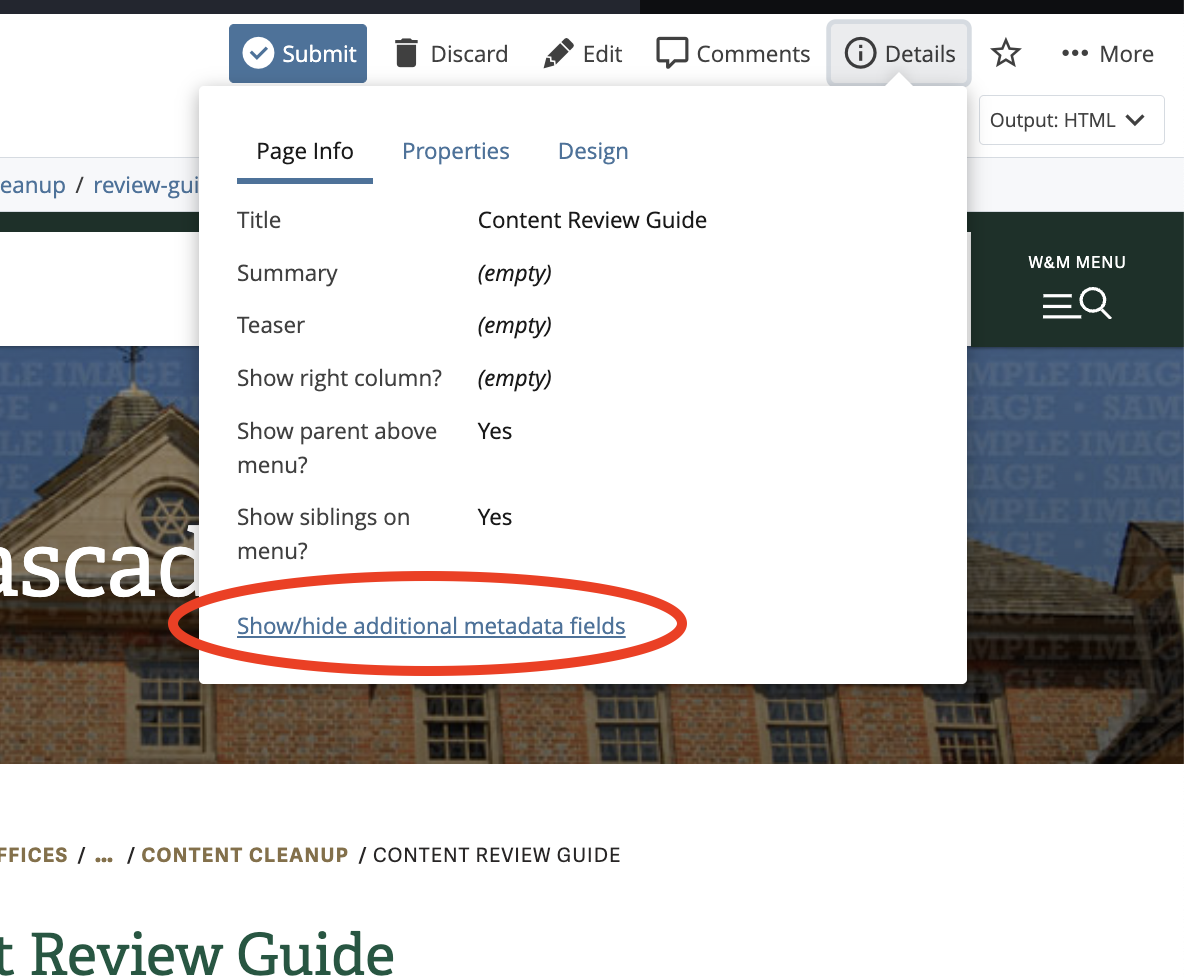
- Click Details in the top right corner
- Under Page Info, click 'Show/hide additional metadata fields'
- The Review Date & Time will appear
Monitor Your Progress
Cascade offers a valuable combination of a Content to Review dashboard widget and a detailed report, helping you manage your content review workflow more efficiently.
Configure the Content to Review Widget
- Go to your Cascade Dashboard.
- Find (or add) the Content to Review widget, then hover and select the pencil icon to edit settings.
- In the settings:
- Select a Site (you must explicitly choose one).
- Set Review Date to 90 days.
- Check Show only content I own.
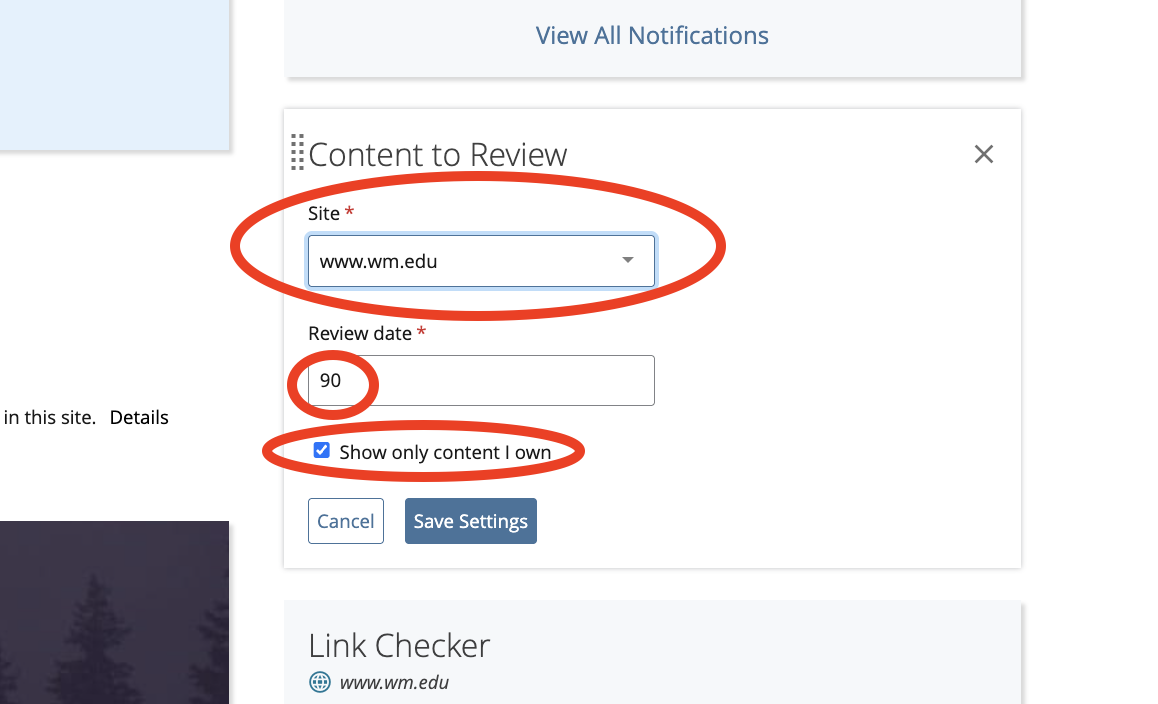
- Select Save.
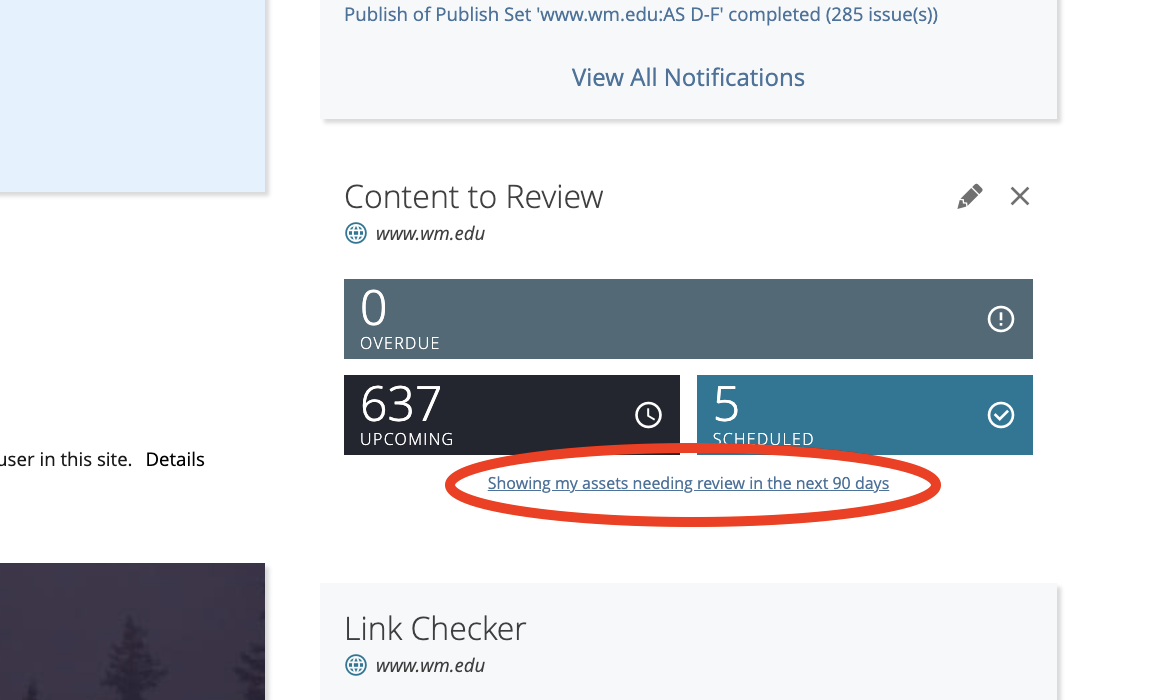
- The widget will display:Upcoming – assets whose review date falls within the next 90 days
- Overdue – assets whose review date has passed
- Total – any assets having a review date
- Unless there are none, you’ll see a link below the results (Showing my assets needing review in the next 90 days), which will take you to the Content Reviews Report.
Use the Content Reviews Report
- Select the link from the widget to open the Content Reviews report, with the same filters applied (Site, review window, and “only mine”).
- Cascade cleverly applies the widget’s filters (Site, number of days, and only content you own) to this report.
- The report lists each asset, including its path, title, and a link for editing or marking as reviewed.
- Use it to navigate directly to content needing attention.
- The benefit of the report over the widget is that the report provides the path and link to each asset in need of review.
Things to Watch Out For & How to Fix
- Site must be explicitly selected when editing the widget
- Even if a Site name is already showing in light gray, you still need to select the dropdown and choose your Site. Otherwise, Cascade may default to a different site when you save changes.
- Report filters affect the widget even when the widget doesn’t show them
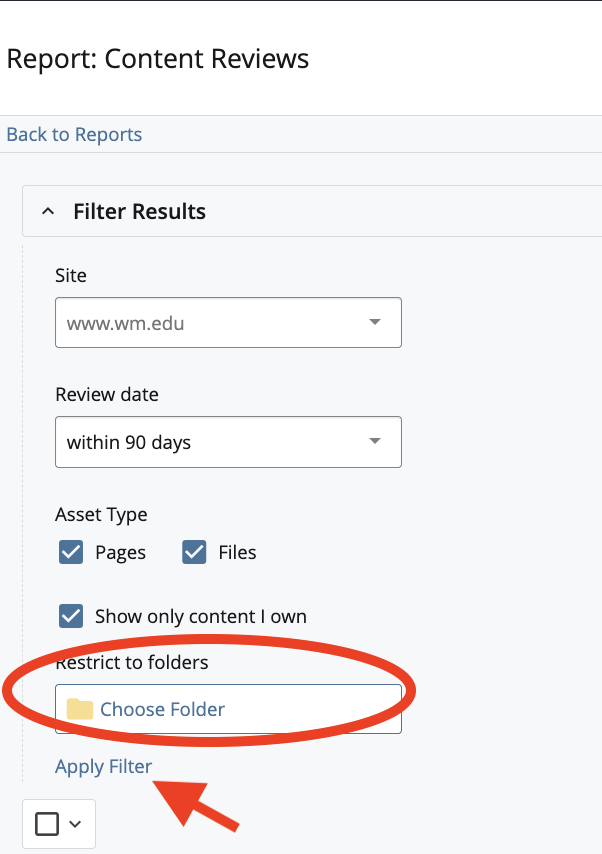
- If you apply a folder or other filters in the Content Reviews report, those filters are passed back to your dashboard widget settings.
- That means your widget might stop showing results (if filtered out), even though there is content that needs review.
- Example: You filter to the one sub-folder you’re currently reviewing. After reviewing everything in that folder, you will have no results remaining on the filtered Content Reviews report. Obviously, you’ll still have items to review in other folders... right?
- When you return to your Dashboard, the Content to Review widget will show no results. The widget inherited your last filters from the Content Reviews report.
- Unfortunately, the widget doesn’t communicate this, nor does it provide a means to change it in the widget settings.
- Editing the widget settings (within the same Site, or to another Site, then back again) does not erase these filters.
- Example: You filter to the one sub-folder you’re currently reviewing. After reviewing everything in that folder, you will have no results remaining on the filtered Content Reviews report. Obviously, you’ll still have items to review in other folders... right?
- To fix the issue, open the Filters section in the Content Reviews report, clear any folders under “Restrict to folders,” and select Apply Filter. Following these steps restores the Content to Review dashboard widget to its original settings, as shown by the widget.