 Skip to main content

Blackboard Ally
How accessible is your content?
Per the requirements of the Department of Justice and the Commonwealth of Virginia, all university web content must adhere to Web Content Accessibility Guidelines (WCAG) 2.1 Level AA standards to ensure digital content is accessible to people with disabilities by April 24, 2026.
Blackboard Ally is an external tool that works seamlessly with William & Mary's Learning Management System (LMS) to gauge the accessibility of your course content. Ally provides guidance and tips for improvement to your content accessibility.
- Receive feedback on the accessibility of your content
- Improve content accessibility with Ally's step-by-step instructions
- Automatically checks course materials against WCAG 2.1 accessibility standards
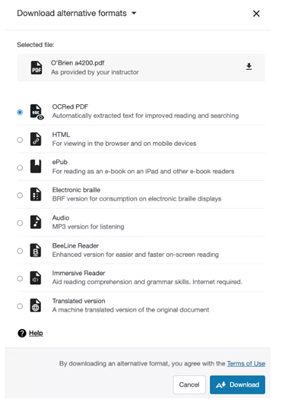
In addition to providing instructors with insight into their course accessibility, Ally automatically creates alternative versions of files. This allows students to choose the type of file that best suits their needs. Discover what alternate formats are available.
Look for the Ally icon on attached files within your Blackboard course.

Accessibility Score Indicators
When adding files into your course content, you will see accessibility indicators on your content. This is visible to the instructor only. Students do not see the indicators in your course. The indicators allow you to click into the accessibility score and view guidance on how to improve your file. These results are obtained through Ally's assessment of how accessible these materials are for students using assistive technology like screen readers, are deaf or hard of hearing, color blinds or have any other learning barriers. Ally will walk you through a series of steps to make the file more accessible.
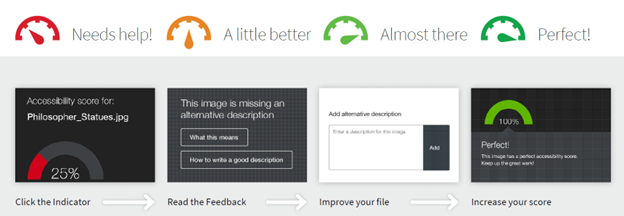

Learn more about the Accessibility Scores on the Blackboard Ally help page.
Course Accessibility Report
Blackboard Ally’s Course Accessibility Report gives you a course-level view of accessibility, so you can prioritize what to fix first. In one place, you can see your overall course accessibility score, a list of all supported files, and issues organized from more severe to more minor, including quick wins in the “easiest issues to fix” area.
Use the following steps to open your report and understand what you’re seeing:
|
||||||||
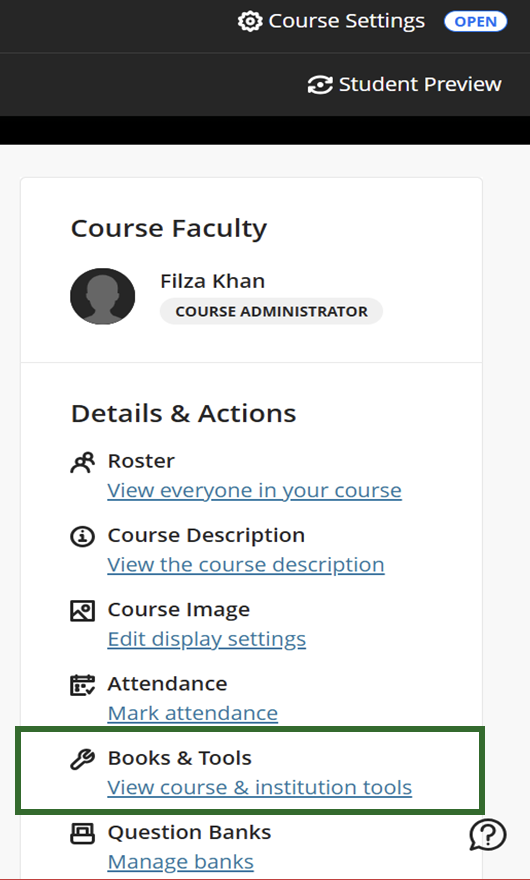
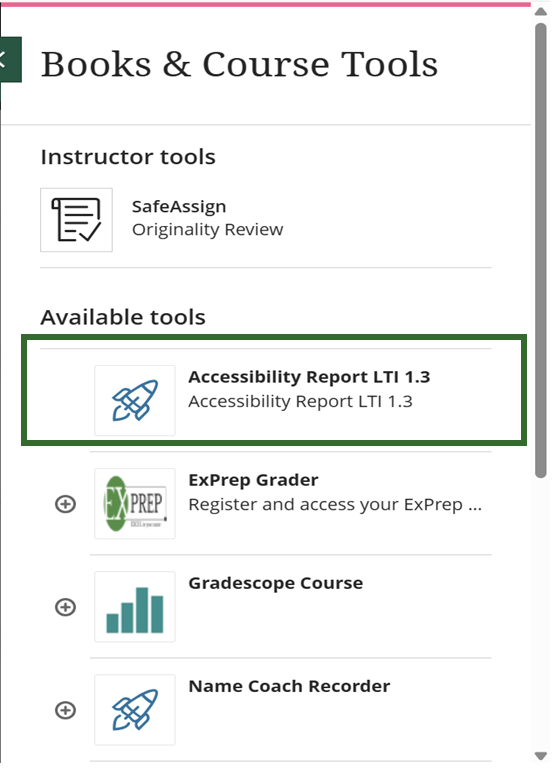
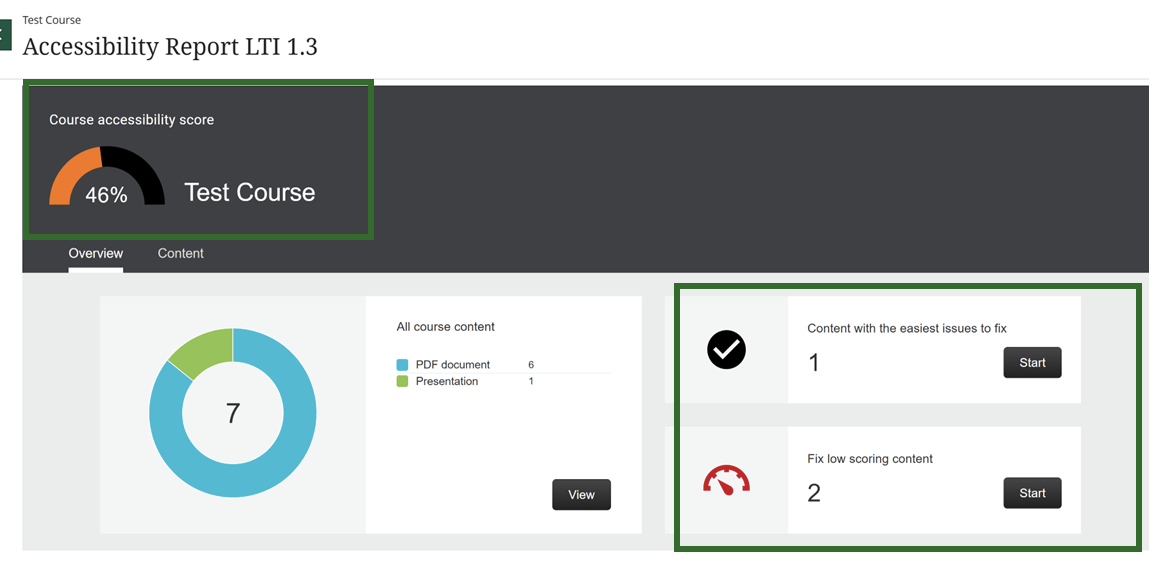
The report shows instructors:
- Accessibility score for the course
- Distribution of course content by type of file
- List of all issues identified in the course
- Guidelines on how to fix the files to improve score and accessibility
Helpful resources to get you started
- Step-by-Step Guide to Check your Course Accessibility
- Accessibility Checklist
- Instructor Frequently Asked Questions
- Course Accessibility Report
- Ally Sample Course Accessibility Report for Instructors
- Learn more about Accessibility Scores and Feedback
- Watch Ally for Blackboard Overview (Instructor and Students)
- Watch Blackboard Ally tutorials
- Using the WYSIWYG Accessibility in Ally
- PDF Quick Fixes
What is Blackboard Ally?Blackboard Ally is a tool integrated into Blackboard that helps improve the accessibility of course content. It automatically checks course materials for accessibility issues, provide alternate formats for students, and offers guidance to instructors on how to enhance content accessibility. |
What alternate formats does Ally generate?Ally automatically generates several alternative formats for course content, including:
|
How does Ally assess the accessibility score of their course content?Ally evaluates course materials and assigns an accessibility score to each item. This score reflects the severity of accessibility issues present. Instructors can view these scores, along with feedback and guidance on how to address any identified issues. |
Do students see the accessibility scores of their course content?No, students do not have access to the accessibility scores or indicators. These are only visible to instructors. Students can, however, access the alternative formats generated by Ally. |
What types of content does Ally check for accessibility?Ally reviews various types of content for accessibility, including:
|
How can instructors improve the accessibility of their course content?Instructors can enhance content accessibility by reviewing the feedback provided by Ally for each course material. Ally offers step-by-step guidance on how to fix identified issues, enabling instructors to make necessary adjustments and improve accessibility scores. |
Is there a file size limit for content that Ally can process?Ally does not enforce a strict file size limit. However, for optimal performance, it's recommended to keep documents under 100 pages for OCR processing and under 50MB for files uploaded through the instructor Feedback panel. |
How does Ally handle password-protected content?Ally detects password-protected files and assigns them a 0% accessibility score, as it cannot access their content. Instructors are provided with guidance on how to remove passwords to improve accessibility. |
How quickly are alternative formats generated by Ally?When an alternative format is requested for the first time, Ally typically generates it within 1-2 minutes. Once created, the format is cached, allowing for immediate downloads for subsequent requests. |
What about copyright and prohibitions on making derivative works?Blackboard Ally does not modify the original file. Instead, it generates alternative formats solely for student use and accessibility support. These versions are created automatically and do not replace or change the original content, so they are generally considered to fall within accessibility and fair use exceptions under copyright law. However, instructors are still responsible for ensuring that their uploaded materials comply with copyright rules and any licensing restrictions on derivative works. |
What does Ally do with Youtube videos?Ally scans Youtube videos embedded or linked in your course and checks whether they include captions. It does not assess caption accuracy or generate them. It simply alerts instructors if a video is missing captions, helping them ensure that multimedia content is accessible to all students. |
How does accessible content support all students?Improving accessibility enhances the overall learning experience for everyone. Many accessibility features overlap with best practices in usability, making content easier to find, navigate and understand - regardless of whether someone has a disability. Here are some examples:
|
Questions?
Contact the Technology Support Center (TSC) 757-221-4357 (HELP) | support@wm.edu | Jones 201, Monday - Friday, 8:00 am - 5:00 pm