 Skip to main content

Content Checker
Built-in help as you submit your page.
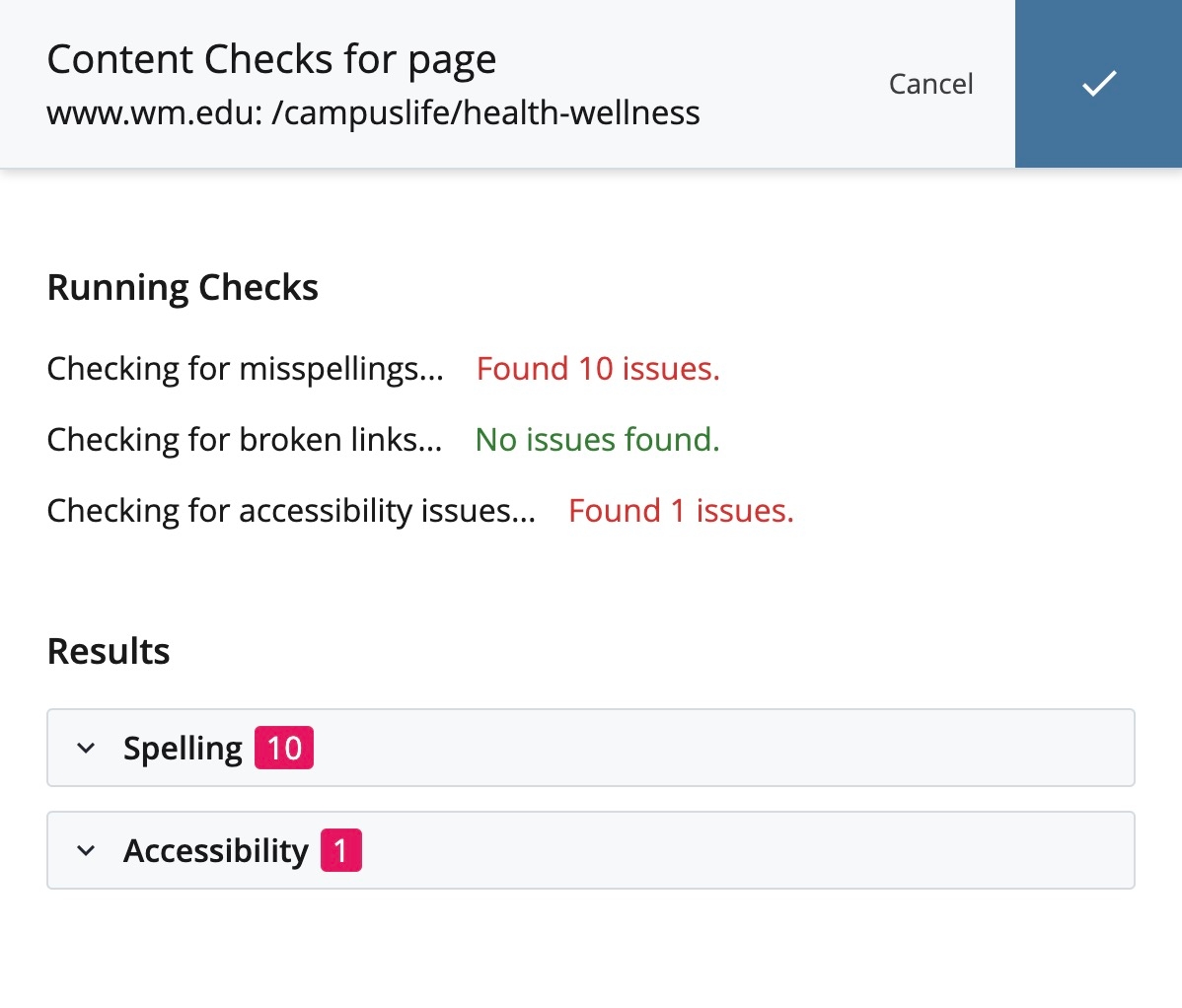
When you submit new and revised assets, Cascade will begin running content checks for spelling errors, broken links and basic accessibility issues. In the Running Checks section, for each of these 3 checks: if the system finds no errors, Cascade will label the result "No issues found" (in green text); but if the system finds errors, Cascade will label the result "Found x issues" (in red text).
Once all checks are complete, a Results section will display any issues found. Content checks having no errors do not appear. Select the headings to expand each section and view/correct the errors.
Spell Check
The Spell Check checks and reports all words (in asset content and metadata) that are not found in the system dictionary.
You have the following actions available for each misspelling:
- Ignore: Disregard the misspelled word.
- Fix: Repair the misspelling by choosing from a list of suggested replacements or typing your own.
Link Check
The Link Check ensures that all links between assets in the system are valid. The Broken Link column lists the destination path of the broken link and the Link Text column provides the hyperlinked text.
You have the following actions available for each broken link:
- View Reason: Provides additional information on why the link is considered invalid.
- Ignore: Disregards the reported broken link.
- Fix: Choose an asset within Cascade CMS via the internal chooser.
Accessibility Check
The Accessibility check ensures WYSIWYG content complies with the following accessibility guidelines:
- Image (img) tags must have alternate text provided.
- Table captions must not be empty.
You have the following actions available for each issue:
- View Non-Compliant Content: View the specific HTML markup flagged during the check.
- Ignore: Disregard the issue.
- Fix: Enter a value for the missing or flagged content. For example: alternate text for an image or caption for a table.
Table captions
The table caption will preview for you in the WYSIWYG at the top of your table, however it is only presented to screen readers and will not be displayed on the page.